PostNord
With a PostNord agreement in Invdash you book labels to pickup points and to the customer's home, return labels and pickups. This article gathers what applies to PostNord in particular. How agreements work in general is in Shipping agreements.
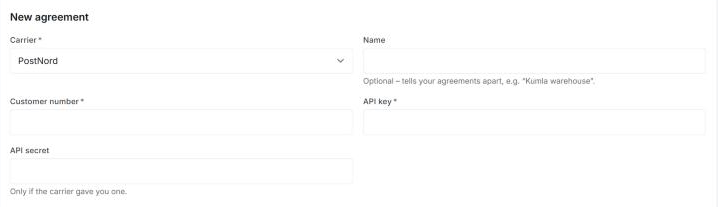
What you need from PostNord
- Customer number: your customer number with PostNord. It is required, and every label is booked on it.
- API key: required. A key only works in the system it was issued for, PostNord's real system or its test system.
- API secret: fill it in only if PostNord gave you one.
If you have no customer number or API key, ask PostNord.
Add the agreement
- Open Settings › Freight › Shipping agreements and click Add agreement.
- Pick PostNord under Carrier.
- Fill in Customer number, API key and the Sender address.
- Click Submit request.
Invdash reviews the agreement and tries the key with PostNord before it becomes Active. Once the agreement is reviewed, the row Environment on its card shows whether it is set to Test (demo) or Live. If you have sent in a test key, tell support, so that the agreement is set to the right system. More about the review is in Shipping agreements.
Products and add-on services
In a shipment template you choose one of these products. They are PostNord's services for Swedish senders.
| Product | Delivered | Add-on services |
|---|---|---|
| MyPack Collect | To a pickup point | SMS notice, E-mail notice, ID check, FlexChange (the recipient can re-route), To a parcel locker, Not to a parcel locker |
| MyPack Home | To the customer's home | ID check, FlexChange (the recipient can re-route), Signature required, Not to a parcel locker |
| MyPack Home Small | Small parcel to the door or mailbox, up to 3 kg | FlexChange (the recipient can re-route) |
| Postpaket | Standard parcel | SMS notice, E-mail notice, ID check, FlexChange (the recipient can re-route), Signature required, Not to a parcel locker |
| PostNord Return | Return label, see below | QR code to the customer (no printer needed) |
Add-ons that need more details, such as an insured amount, can't be chosen in Invdash. Ask PostNord what each service and add-on costs on your agreement.
The label is a PDF of 100 × 150 mm.
Pickup points and the checkout
MyPack Collect is booked to the pickup point the customer chose in the checkout. Without a choice, Invdash takes the nearest pickup point when a pick list is finished, and when you book on the order yourself you choose the pickup point in the booking form.
With Delivery methods in the checkout the checkout can show PostNord's pickup points near the customer. The points are fetched with your PostNord agreement, so the agreement must be active.
Pickups
You can ask PostNord to collect parcels at the sender address under Shipments › Pickups. It works for sender addresses in Sweden, Denmark and Finland. A booked pickup can't be cancelled from Invdash: call PostNord's customer service with the pickup number. Read more in Pickups.
Return labels
Create a shipment template of the type Return label with the product PostNord Return. The customer leaves the parcel at a pickup point, and it is sent to the agreement's sender address.
With the add-on QR code to the customer (no printer needed) the customer gets a QR code to show at the pickup point instead of a printed label. PostNord sends the code by text message if the customer has a phone number and by e-mail if the customer has an e-mail address.
Return labels are booked from an order or a return, see Handle returns.
Cancel a label
PostNord can cancel a label from Invdash when the agreement's sender address is in Sweden, and only as long as PostNord hasn't got the parcel. The dialog where you confirm says which applies:
- PostNord is asked to cancel the label too. If PostNord already has the parcel it isn't cancelled, and Invdash says so. Contact PostNord if the parcel should be stopped.
- PostNord can't cancel the label from here. This applies to agreements with a sender address outside Sweden. Don't put the label on a parcel.
How to cancel is in Ship an order and Booked shipments.
Tracking
Invdash fetches the parcel's scans from PostNord and shows them on the order. Track the parcel opens PostNord's tracking page, in the recipient country's language for Sweden, Denmark, Norway and Finland and otherwise in English. Read more in Tracking.
If something doesn't work
A booking that fails shows PostNord's own answer, in English as it came. The most common ones:
- Labels can't be booked without your PostNord customer number. The agreement's card shows the warning. Click Add it and fill in the number.
- The carrier didn't accept the API key. Check the key and that the agreement is set to the right system. If the answer says “(test system)” it came from PostNord's test system, where a real key isn't accepted.
- The answer mentions “invalid basicServiceCode”. PostNord doesn't take the product for that country. Choose another product in the template.
- “There's no pickup point near the delivery address”. No pickup point was found near the recipient. Check the postal code and country on the order.
- The carrier didn't answer, or isn't taking more requests right now. Wait a moment and book again.
If none of that helps, see The label couldn't be booked.