Shipment templates
A shipment template holds what a label is booked with: carrier, product, agreement, parcel and carrier services. The template prefills the booking form on the order, and finishing a pick list books each order with its delivery method's template.
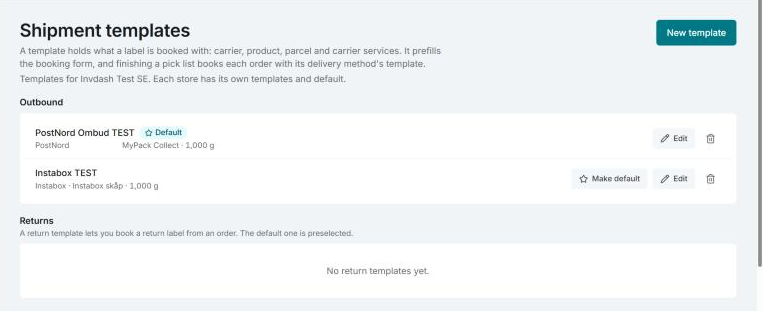
You find the templates under Settings › Freight › Shipment templates. Each store has its own templates and its own default. Only owners and admins can create, edit and delete templates.
Create a template
- Click New template.
- Choose the Type: Outbound parcel or Return label. The type can't be changed afterwards.
- Give the template a Name.
- Under Carrier product, choose Carrier, Product and Shipping agreement. If you have several agreements with the carrier, you must pick which one the template books with.
- Tick the Carrier services you want, if the product has any. With PostNord these are for example SMS notice, ID check and Signature required.
- Fill in the Parcel (see below) and click Save.
You need a shipping agreement with the carrier. If there is none yet the form says so: labels can only be booked once an agreement is active.
For a product delivered to a pickup point, the point is the one the customer chose at checkout, or else the nearest one.
The parcel
- Weight (g): the parcel's weight, from 1 to 50,000 g.
- Box: one of your boxes, or No box.
- Package type: shown if the carrier has package types to choose from. Leave Carrier's default if you are unsure.
- Size (L × W × H): optional, but some services need a size. Give all three sides or none. Leave empty to use the box's size.
Use the order's product weights
With Use the order's product weights ticked, Invdash works out the weight of each parcel: the products' weight plus the box's own weight. The weight field is then called Weight if a product has none (g). If any product in the parcel has no weight, that weight is used for the whole parcel.
The option is only there for outbound parcels.
The default template
Tick Make default in the template, or click Make default in the list. The default template is used for orders whose delivery method has no template of its own.
If you delete the default template, finishing a pick list won't book labels until you choose another.
Return templates
Templates of the type Return label are listed under Returns. A return template lets you book a return label from an order. Tick Make the default for returns on the template that should be preselected.
If the carrier has no return services in Invdash yet, the form says so, and the template can't be saved without a product.
How the template is chosen for an order
Invdash takes the first one there is:
- The template you picked on the order yourself.
- The template on the checkout delivery method the customer chose, if the order came through Invdash's delivery methods in the checkout. If that method has no template, the order isn't booked by Invdash.
- The template you chose for the order's delivery method under Delivery methods. If the method is set to Not booked by Invdash, no label is booked.
- The store's default template.
If you pick a template on the order yourself, it books, even if the delivery method is set to Not booked by Invdash.
Edit and delete
Click Edit or Delete on the template. Labels you've already booked aren't affected.
A template that delivery methods in your checkout book with can't be deleted, and its carrier can't be changed. Give those delivery methods another template under Settings › Freight › Delivery methods first.