Ship an order
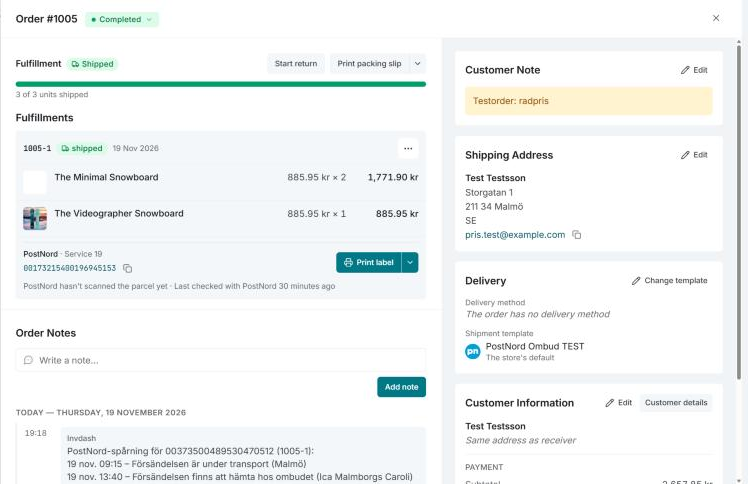
You ship an order from its panel, under Fulfillment. A fulfillment is one parcel: the items that leave the warehouse together. Most orders have one, but you can split an order into several.
If you ship many orders at once, a pick list is faster.
Step by step
-
Open the order from the Orders page. Under Unfulfilled are the items not picked yet.
-
Start the fulfillment.
- Start fulfillment (all items) takes everything that's left.
- Partial delivery… lets you enter a quantity per row. Then click Create fulfillment. The rest stays and is delivered later with Fulfill remaining.
The fulfillment gets a code of its own and the status picked.
-
Mark packed when the parcel is packed.
-
Book the shipment, see below. Skip this step if the parcel shouldn't have a label from Invdash.
-
Mark shipped when the parcel leaves the warehouse.
The bar at the top always shows how much of the order has shipped, been picked or packed, and what's left.
Book a shipment
Click Book shipment on the fulfillment. The form is pre-filled from the order's shipment template, and says which template that is.
- Agreement: shown when there are several shipping agreements to book with.
- Delivery service: the carrier's service.
- Pickup point: shown when the service delivers to a pickup point or parcel locker. The one the customer chose at checkout is marked "(chosen at checkout)".
- Weight (g): the parcel's weight in whole grams.
Click Book. Once the shipment is booked, the carrier, the service and the tracking number show on the fulfillment. Each label is booked with the carrier, which charges for it.
If the delivery method isn't booked by Invdash the form says so, but you can still book a label here.
Print the label
Click Print label. The fulfillment's menu also has Open the label (PDF), Track the parcel and the packing slip. If you have a printer connected, the label can be sent straight to it, see Printing.
Once the carrier has started scanning the parcel, the events show under the tracking number. Read more in Tracking.
Ship without a label
You don't have to book any shipment in Invdash. Click Mark packed and then Mark shipped, and the items count as shipped without a tracking number.
What happens when the order ships
- The payment: in a store that captures when Invdash ships the order, the fulfillment's share is captured when you mark it shipped, and what's left when the last one ships. The line under the bar then says "payment captures automatically on ship". Read more in Payments.
- WooCommerce: once everything has shipped, the order is set to Completed in the shop. When a label is booked, an order note with the tracking number and tracking link is added to the order. It goes to the customer, unless one of the shop's customer messages in Invdash already shows the customer the tracking: then the note is internal.
- Shopify: each shipped fulfillment becomes a fulfillment in Shopify, with its items, quantities and tracking. Shopify marks the order fulfilled itself once everything has shipped, and emails the customer its shipping confirmation with the tracking, unless one of the shop's customer messages in Invdash already shows the customer the tracking.
- Abicart: each shipped fulfillment becomes a shipment in Abicart with its tracking, and the order is marked sent there once everything has left.
If the shop didn't take the news, Invdash says so and tries again with the next order sync.
Cancel a fulfillment or a label
Open the fulfillment's menu and choose Cancel fulfillment. If it has a booked label you choose between Cancel fulfillment, where the label stays booked, and Cancel fulfillment and shipment.
- The quantities are released and can be fulfilled again.
- If you cancel the shipment, the label is cancelled with the carrier too, unless the carrier already has the parcel. Some carriers can't cancel a label from Invdash. The dialog then says so: don't put the label on a parcel.
- If the fulfillment has already shipped, the customer isn't told, and the order keeps its status in the shop.
- Nothing is refunded. Do that under Payment if the customer won't get the items.
Cancelled fulfillments are hidden, and shown again with Show cancelled fulfillments.
If the parcel should go to a new address, cancel the shipment, change the address and book again, see Edit an order.
Start a return from the order
Once something of the order has shipped, the button Start return is at the top of Fulfillment. You choose the items, the reason, what the customer wants and how the parcel comes back. The return uses the return portal's reasons and return methods, so the portal needs to be set up first. The returns then show under Returns in the order, with the button Handle.
Read more in Handle returns.
If something doesn't work
- "No active shipping agreement to book with." Add one under Settings › Freight, see Shipping agreements.
- The booking failed. The reason is shown on the fulfillment. Click Rebook shipment, correct what was wrong and book again.
- "The carrier booked the label … but Invdash couldn't save it. Don't book it again." The label exists with the carrier. If you book again you pay for two.
- "Booking in progress…" doesn't go away. Ask the carrier whether it has a label for the booking's reference. Choose Mark as not booked only once the carrier has said it has none, otherwise you buy a second label.
- "This order is cancelled, so nothing more is fulfilled for it." A cancelled, refunded or failed order can't be shipped.
- "This order … may not be paid yet." Check the payment before you ship.
- "Shipped, but the payment capture failed." Retry it from the payment panel in the order.
- "All items shipped, but completing the WooCommerce order failed." Change the status to Completed in the status menu.