Print labels and packing slips
You can print shipping labels, pick lists and packing slips in two ways: from the browser, or straight to the packing desk's printers with the Invdash Print app.
Print from the browser
Without connected printers, the buttons Print label and Print packing slip open the document in the browser. The label opens as a PDF, and you print with the browser's usual print dialog. This works without installing anything.
Invdash Print
Invdash Print is an app you install on the packing computer. It receives print jobs from Invdash and sends them straight to the computer's printers, without a print dialog. The app is available for Windows and Mac.
You set up the printers under Settings › Fulfillment › Printers. Only owners and admins can connect computers and add printers.
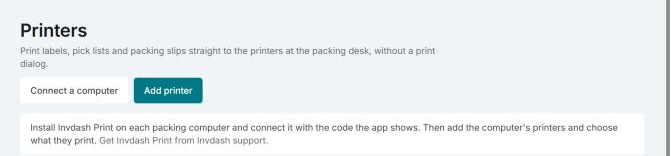
Connect a computer
- Download and install Invdash Print on the packing computer. The link Download Invdash Print is on the Printers page. If the link isn't there, you get the app from Invdash support.
- Start the app. It shows a code.
- In Invdash, open Settings › Fulfillment › Printers and click Connect a computer.
- Enter the code and click Next.
- Check that the computer's name matches what the app shows, give it a name of your own such as “Packing desk 1” if you like, and click Connect.
A connected computer gets the organization's print jobs. Always compare the name with the one Invdash Print shows on the computer.
The code is valid for 15 minutes. If it has run out, the app shows a new one.
Add a printer
- Click Add printer.
- Choose the Computer and the Printer. The list shows the computer's own printers.
- Give the printer a Name.
- Choose the Format:
- Label 10 × 19 cm for label printers.
- A4 for ordinary printers.
- Label 10 × 19 cm ZPL for Zebras and other printers that understand ZPL. The label is then drawn at the printer's resolution and sent straight to the printer, which gives the sharpest labels.
- Under Default printer for, tick what the printer should print:
- Shipping labels: labels and return labels.
- Pick documents: pick lists and packing slips.
- Other documents: test pages and the rest.
- Click Save.
If the printer is the default for shipping labels, you can tick Print labels as soon as they're booked. The label then comes out of the printer as soon as the shipment is booked.
Click Test page on the printer's row to check that the print arrives.
Default printers and printers of your own
The default printers are for everyone in the organization who hasn't picked printers of their own.
If you have a packing desk of your own, choose your printers under My printers on the same page. Your documents then go there instead of to the organization's default.
Print when printers are connected
The print buttons send the document to the right printer: your own for that kind of document, otherwise the organization's default. The arrow beside the button opens a menu where you can choose another printer, Open PDF or Print in the browser.
If the packing computer is off, the print job waits for 30 minutes. If the computer comes on within that time, it prints. Otherwise it isn't printed, and you have to print again.
Computers
Under Computers you see each connected computer, whether it is Online and when it was last seen.
- Update available means there is a newer version of Invdash Print. The app doesn't update itself: download the new version and install it on the computer.
- Disconnect removes the computer's printers, and it stops printing. To use it again, connect it with a new code.
In the Invdash Print app
The app's window has the pages Status, Activity, Printers and Settings. Under Printers you can click Update printers when you have installed a new printer on the computer, make a Test print and, for Zebra printers, Calibrate. Calibrate after changing the label roll.
If something doesn't work
- No computer is waiting with that code. Check it against the code Invdash Print shows.
- The code has run out. Enter the new code the app shows.
- The printer is missing from the list. Click Update printers in the app. If it says all the computer's printers are added, it is already in Invdash.
- Invdash Print doesn't recognise this as a ZPL printer. Choose ZPL only for Zebras and other printers that understand ZPL. Otherwise choose Label 10 × 19 cm.
- The printer couldn't print it. Check that the packing computer is on, that Invdash Print is running and that the printer has paper. Under Activity in the app you see what happened to the print job.