Products in Inventory
Inventory is the list of your shop's products. Here you search for a product, see its price and stock status, and open it to change it. Changes you save are sent to the shop.
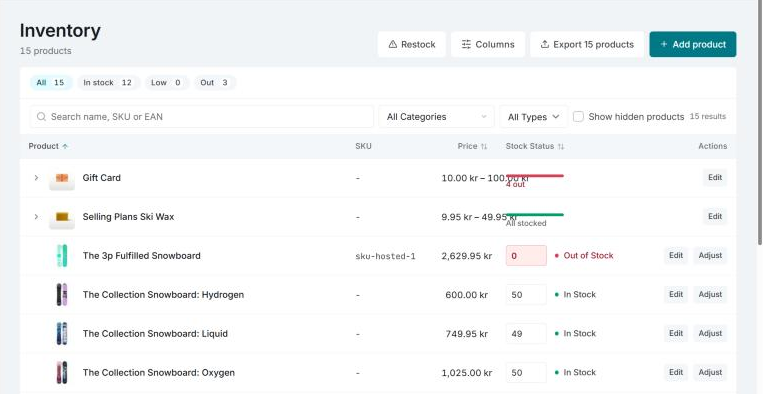
The list shows the products of the store that is selected. If you have several stores, switch store first.
Find a product
- Search by name, SKU or EAN in the search box. If you press Enter (or scan a barcode) and what you searched for is exactly one product's SKU, a variation's SKU or a barcode, that product opens straight away.
- The tabs above the list show All, In stock, Low and Out, each with a count. You decide where the limits go under Stock levels and stock alerts.
- Filters: category, product type (Simple, Variable, Grouped, External) and Show hidden products, which includes drafts and other products that aren't published. Their status is marked on the row.
- Sort by name, price, date created or stock, either in the sort menu or by clicking the column headers Product, Price and Stock Status.
The filters are part of the page's address, so a reload or a shared link shows the same list. Clear filters removes them.
Columns
The list has the columns Product, SKU, Location, Type, Price, Stock Status and Actions. Under Columns you choose which ones to show. The choice is saved for you.
- Hover over the product image to see it larger.
- The small link icon beside the name opens the product in the shop (View in store).
- A variable product has an arrow in front of its name. Click it, or the row, to show the variations.
- Under the stock status it may say, for example, "40 on the way". Those are goods a supplier has yet to deliver, see Supplier import.
Export CSV at the top right downloads the list as a CSV file, with the filters you have chosen. Once the list has loaded, the button says how many products it takes.
Open and edit a product
Click the product's name or Edit. The product opens in a panel from the right, with tabs:
- Basic info: product name, SKU, status, featured product, regular price and sale price, categories and tags. A variable product has its prices per variation, on the Stock tab.
- Stock: Manage stock, stock quantity, backorders and stock status. For a variable product the variations are here too, see below.
- Images: product image and product gallery. Add new images, remove images or choose which one is the product image.
- Description: description and short description, with bold, italic and a preview.
- Shipping: weight, length, width, height and shipping class.
- Linked products: upsells and cross-sells. Search for products and add them.
- History: what has happened to the product's stock, status, SKU and prices. Read more under Changing stock.
Save or discard
Nothing is sent to the shop until you click Save at the bottom of the panel. Enter in a field doesn't save. You can move between the tabs, change several things and save it all at once.
If you close the panel with unsaved changes, Invdash asks Discard your changes?. Choose Keep editing to go back or Discard changes to close without saving.
If a field needs fixing, the field is marked and the tab it is on gets a warning icon.
Variations
A variable product has its prices and stock per variation. On the Stock tab each variation has a card of its own with SKU, Manage stock, stock quantity, stock status, regular price and sale price. A card you have changed is marked Changed.
The variations are saved together with the product when you click Save. If a variation can't be saved, Invdash says which one and why. Everything else is still saved.
Create a product
- Click Add product.
- Fill in the name and choose the product type: Simple or Variable.
- Fill in price, stock, images, descriptions and shipping on the tabs.
- For a variable product, go to the Stock tab. Under Attributes, add an attribute, tick Used for variations and pick values. Then, under Variations, click Generate from attributes, or add variations one at a time with + Add variation. With more than one variation, fill in what they have in common under Same for all variations and click Apply to all. For a simple product the attributes are on the Basic info tab.
- Click Create product.
A variation without a price can't be bought. If a variation has no price, Invdash asks whether you want to Add prices now or Create anyway.
A product that isn't published only shows when Show hidden products is on.
Differences between platforms
- WooCommerce: everything above. When you edit a product, you can also pick images already in the shop with Choose from media library on the Images tab.
- Shopify: products are edited and created the same way, with tags, images and Shopify's collections as categories. There is no media library to choose from, so you upload images on the product. An automated collection can't be added or removed here. Shopify has no attributes besides the ones the variations are made of, so a new product with an attribute that isn't used for variations isn't created, and a product can have at most three attributes for variations. Read more under What works with Shopify.
- Abicart: the products show in the list, but they are created and edited in Abicart. The buttons Add product and Edit are therefore not there, and the name can't be clicked. You can still change the stock, see Changing stock.
If something doesn't work
- No products synced yet. The products show up after the first sync from the shop. You can start one under Sync health.
- Another product already uses this SKU. Each product and variation needs a SKU of its own.
- The stock changed in the store while you were editing. An order or a colleague changed the stock first. Check the quantity and save again.
- The store's API key isn't allowed to change products. Give the key Read/Write access in WooCommerce.