DSV
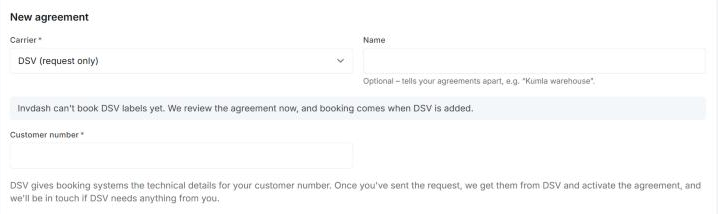
Invdash can't book labels with DSV yet. In the list of carriers DSV shows as DSV (request only): you can send in your agreement now, it is reviewed, and booking comes when DSV is added. This article says what works today.
Shipment templates, labels, return labels, pickups, cancelling and tracking don't exist for DSV in Invdash yet. Book orders that ship with DSV some other way for now.
What you need from DSV
- Customer number: your customer number with DSV. It is required.
You don't fill in an API key. DSV gives booking systems the technical details for your customer number, so Invdash gets them from DSV once you have sent the request, and gets in touch if DSV needs anything from you.
Send in the agreement
- Open Settings › Freight › Shipping agreements and click Add agreement.
- Pick DSV (request only) under Carrier.
- Fill in Customer number and the Sender address.
- Click Submit request.
The agreement gets the status Pending review. What the statuses mean, and how to edit or withdraw a request, is in Shipping agreements.
What works today
Delivery methods in the checkout. You can add a delivery method with DSV as its Carrier under Delivery methods in the checkout. Invdash then says that DSV labels can't be booked yet, so its orders are booked some other way, but that the checkout still shows DSV's pickup points. For the type Parcel locker, DSV's parcel lockers are fetched instead of its pickup points. Choose None – booked some other way under Shipment template.
If no pickup points show in the checkout for a DSV delivery method, contact support.
What doesn't work yet
- Shipment templates. If you pick DSV in a template the form says: “Invdash can't book labels with this carrier yet. Pick another.”
- Labels and return labels. DSV has no products to choose in Invdash.
- Pickups. Invdash only books pickups with PostNord, see Pickups.
- Tracking and cancelling. There are no DSV labels in Invdash to follow or cancel.
When booking with DSV is added, this article is updated.