Connect a WooCommerce shop
Invdash reads and updates your WooCommerce shop through WooCommerce's own REST API. You create a pair of API keys in WooCommerce and paste them into Invdash. You do it once per shop.
What you need
- To be an owner or admin in Invdash. Other roles can't manage stores.
- A WordPress account that is an administrator or shop manager in the shop. Keys created by a user who can't manage products aren't accepted.
- The shop's public address, for example
https://your-store.com.
Create API keys in WooCommerce
- Log in to the shop's WordPress admin and open WooCommerce › Settings › Advanced › REST API.
- Add a new key and give it a description, for example
Invdash. - Choose the Read/Write permission. WooCommerce suggests Read first, and a key that can only read isn't enough: Invdash then can't update stock or complete orders.
- Create the key and copy both the Consumer Key (starts with
ck_) and the Consumer Secret (starts withcs_). WooCommerce shows them only once.
The keys give access to your shop. Paste them only into Invdash, and never send them by e-mail or chat.
Add the store in Invdash
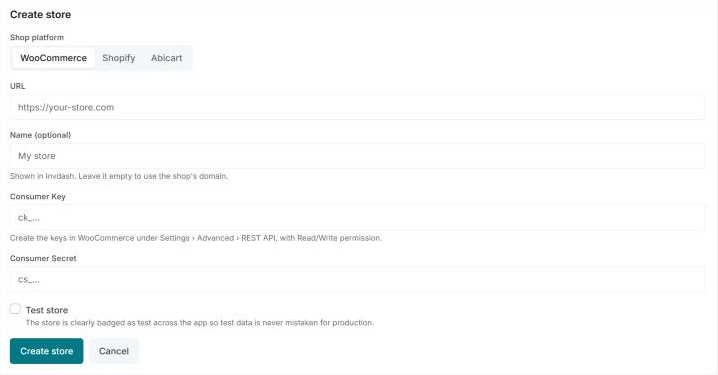
- Open Settings › Integration › Stores and click Add store.
- Choose WooCommerce under Shop platform.
- Enter the shop's address under URL. Once the address is filled in, the form shows a link that opens the REST API keys page in your shop.
- Give the store a name if you like. If you leave Name (optional) empty, the shop's domain is used.
- Paste the Consumer Key and the Consumer Secret.
- Tick Test store if it's a test shop. It's then badged as test across Invdash.
- Click Create store.
Invdash checks the connection before anything is saved: that the shop answers, that the keys are accepted and that they may write. If something is wrong, the form says above the button what to fix, and the store isn't added until the check passes.
The first import
Once the store is connected, Invdash imports products, then orders and last customers. The store's row on the Stores page shows the status Importing and how far the import has come. You can start using Invdash meanwhile.
When the import is done the row shows Syncing, together with the last sync, webhooks, the plugin's version and how many products, orders and customers Invdash holds.
With the Invdash plugin in the shop, changes arrive faster and more features work. Read more in The Invdash plugin for WordPress.
Test the connection
Click Test connection on the store's row whenever you want to check the shop. The test shows up to three rows, each passed or failed:
- WooCommerce REST API: the shop answers and accepts the keys.
- Write access: the keys may change things in the shop. The row is shown when the test could tell.
- Invdash plugin: the plugin answers, with its version.
If something is wrong, the test also says what to do. This is how to read the most common results:
| The result is about | What it means | What to do |
|---|---|---|
| The store's domain doesn't resolve | The address is misspelt or points the wrong way. | Check the store URL with Edit. |
| Invalid SSL certificate | The shop's certificate has expired or is wrong. | Renew or fix the certificate on the site. |
| The store didn't answer within 10 seconds | The shop is overloaded or down. | Try again shortly. |
| Private network | The address points to a private network, which Invdash won't connect to. | Use the shop's public address. |
| WooCommerce rejected the API keys | The keys are wrong, deleted or not copied in full. | Create a new Read/Write key and save it with Edit. |
| The key can only read | The key was created with the Read permission. | Create a new Read/Write key and save it with Edit. |
| The key belongs to a user who can't manage products | The WordPress user behind the key has too few rights. | Create the key as an administrator or shop manager. |
| No WooCommerce REST API at this URL | The address is wrong, or WooCommerce isn't active. | Check the URL and that WooCommerce is activated. |
| WooCommerce returned an error | The shop has an error of its own. | Check the site's PHP error log, or ask whoever runs the site. |
| The plugin isn't installed, doesn't answer or is too old | WooCommerce works, but the plugin doesn't. | See The Invdash plugin for WordPress. |
Change the keys or the address
Click Edit on the store's row. The key fields are empty: leave them empty and the keys already saved are kept. If you enter new ones, they're checked the same way as when the store was added.
If something doesn't work
- "There's already a store with this address." The shop is already connected in Invdash.
- "Your plan has no room for more stores." Under the Stores heading you see how many stores the plan holds. Read more in Plans and billing.
- The sync stops or orders are missing. Open Sync details on the store's row. The page is explained in Sync health.