The order list
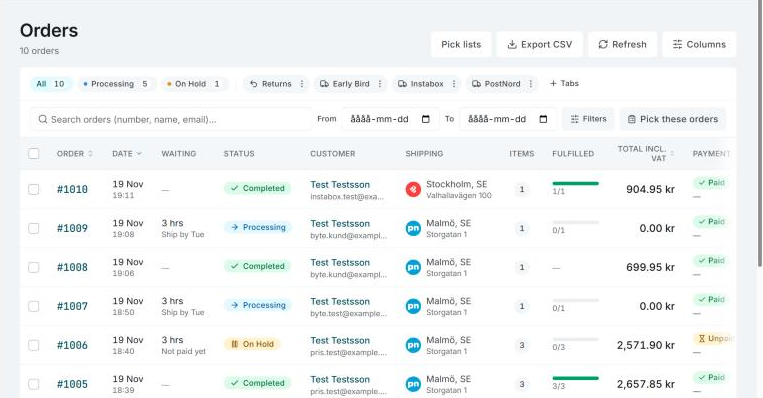
The Orders page shows the orders of the store you're working in. From here you open an order, create pick lists, book labels for several orders and export the list.
Tabs
At the top there's a tab per order status, with the number of orders in each. All is always there. To begin with you also see Processing and On Hold, the orders still to handle.
Under Tabs you choose what's shown:
- Status tabs: tick the statuses you want as tabs of their own (Processing, On Hold, Completed, Pending, Cancelled, Refunded, Failed). Every status is in the filter menu either way.
- Save the current filters as a tab…: saves the status, search, dates and filters the list has now as a tab of your own, with a name and an icon if you like. Only you see your tabs, and you can have up to 20.
A saved tab has its own menu, where you can choose Change name and icon, Save the current filters in this tab or Delete tab. Deleting a tab deletes no orders.
Search, dates and filters
- Search by order number, name or email. If you search for a number that's under another status, the list says which status the order has, with the button Show in All.
- From and To limit the list to a date range. Clear dates removes it.
- Filters opens a menu with:
- Order status
- Shipping deadline: Late and Due today
- Carrier, where Not booked by Invdash means delivery methods Invdash doesn't book shipping for
- Delivery method
- Payment: the payment's state, such as Reserved or Captured
- Payment issues, such as Needs capture
- Country
- Returns: Has a return label
Each filter that's on shows as a chip under the search field. Click the cross to remove one filter, or Clear all.
The filters for shipping deadline, carrier, delivery method, payment, country and returns work on the orders Invdash has synced. If the orders haven't synced yet, the list says so.
Columns
| Column | Shows |
|---|---|
| Order | The order number. Click it to open the order. |
| Date | When the order was placed. |
| Waiting | How long an open order has waited and when it should ship: Late, Ship today, Ship tomorrow, Ship by a certain day, or Not paid yet. |
| Status | The order's status in the shop. |
| Customer | The customer's name. Click it to open the customer. |
| Shipping | Where the order is going and which carrier it's booked with. Hover over the carrier to see the shipment template, whether a label is booked, or that the delivery method isn't booked by Invdash. |
| Items | The number of items. |
| Fulfilled | A bar showing how much has shipped, is underway and is being returned. |
| Total incl. VAT | The order's total. |
| Payment | The payment method, and a pill for the payment's state or an issue that needs something done. |
| Country | The shipping country. The column is hidden until you choose it. |
With Columns you choose which columns are shown, and Reset brings back the default choice. You can sort by Order, Date and Total incl. VAT by clicking the heading.
When an order should ship is decided by Ship orders and Cut-off time under Settings › Fulfillment › Pick settings. Read more in Pick lists.
Working with several orders
Select orders with the checkboxes. A button with the number selected appears, for example 3 selected, with these choices:
- Change status: Pending, Processing, On Hold or Completed. Under Close out you find Cancelled and Failed, which you confirm first. After an ordinary status change you can choose Undo status.
- Print packing slips
- Book shipping labels…: Invdash first checks the orders and says which will be skipped and why, for example that the order already has a label or has no shipment template. Each label is booked with the carrier, which charges for it, from the order's shipment template.
Beside the filters there's also Pick these orders, which creates a pick list from the list or from the orders you've selected. See Pick lists.
The status can't be changed from here for an Abicart store. For a Shopify store only certain statuses can be set, see Order details. When you change the status in WooCommerce, the shop may email the customer.
Export to CSV
Export CSV downloads every order in the list, not just the page you see, with the filters that are on. The file holds order, date, status, customer, email, shipping city, shipping country, items, total, currency and payment. The button isn't shown on a phone.
Delivery methods without a shipment template
If orders to ship have a delivery method without a shipment template, a line above the list names the delivery methods. Their labels can't be booked until someone has chosen a template. An owner or admin does that under Settings › Freight › Delivery methods, see Delivery methods. You can hide the line until the delivery methods change.
If something doesn't work
- "WooCommerce didn't answer, so the list shows the orders from before." The shop is slow or down right now. Click Try again in a moment.
- "These filters need synced orders." Sync the orders from the shop, or clear the filters.
- "Too many exports in a short time." Wait a minute and try again.
- "A pick list takes up to 100 orders." Narrow the list with filters, or select the orders you want to pick.