Delivery methods
Every order comes with a delivery method from the shop, such as “PostNord pickup point” or “Collect in store”. Under Settings › Freight › Delivery methods you decide how each one ships: which shipment template its label is booked with, or that Invdash doesn't book it at all.
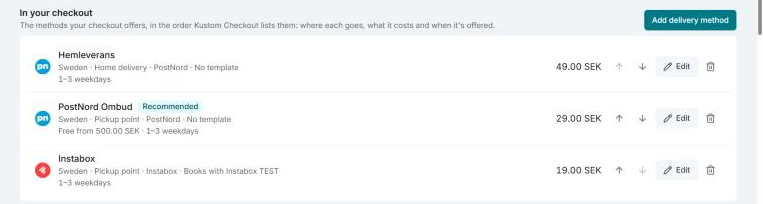
The page is for the store you have selected. It has two parts:
- In your checkout: delivery methods that Invdash itself shows in the shop's checkout. Read about them in Delivery methods in the checkout.
- From your orders: methods the store's orders came with from elsewhere, such as WooCommerce's shipping zones. They are what this article is about.
From your orders
The delivery methods show up in the list by themselves as the store gets orders. You don't add them yourself. Under each name you see how many orders came with the method in the last 180 days, and the most used ones are listed first.
Orders the customer placed with one of Invdash's delivery methods in the checkout aren't counted here: they ship by that method's own setting.
Choose a template for a delivery method
Choose in the list to the right of the delivery method. The choice is saved at once.
- Default template (name): the method has no template of its own, and books with the store's default template.
- One of your shipment templates: the method's orders book with that template. Only templates for outbound parcels are listed.
- Not booked by Invdash: for methods you ship another way, such as collection in store. The orders get no label when a pick list is finished.
Only owners and admins can change this. Others see which template each delivery method books with.
You can always book a label for a single order from the order, even if its delivery method is set to Not booked by Invdash.
You create the templates under Shipment templates.
When a delivery method has no template
If the store has no default template and the delivery method has none of its own, its labels can't be booked. This is what happens:
- On the page, the list says No template (no default set), and under the method the warning Its orders get no label until you pick a template.
- The order list shows a warning naming the delivery methods without a shipment template, with the link Choose templates under Settings › Freight › Delivery methods. You can hide the warning until the delivery methods change.
- When a pick list is finished, you are told how many orders got no label.
Solve it by choosing a template for the method, choosing Not booked by Invdash, or making one of your templates the default.