Shipping agreements
A shipping agreement is your own contract with a carrier, such as PostNord. Invdash books labels on your agreement, with your customer number and your prices. You need at least one active agreement before you can book shipping.
You find the agreements under Settings › Freight › Shipping agreements. Only owners and admins can add and change agreements.
Carriers
Invdash can book labels with:
The list of carriers may also hold some marked request only. Invdash can't book labels with those yet. You can still send in the agreement: it is reviewed now, and booking comes when the carrier is added.
Add an agreement
- Open Settings › Freight › Shipping agreements and click Add agreement.
- Pick the Carrier.
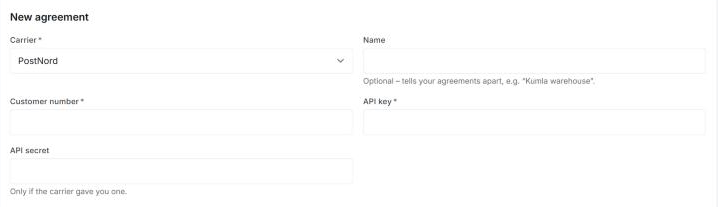
- Give the agreement a Name if you like. It is optional and tells your agreements apart, for example “Kumla warehouse”.
- Fill in the details from the carrier (see below).
- Fill in the Sender address: name, street address, postal code, city and country are required. Company, address line 2, phone and email are optional.
- Click Submit request.
You can have several agreements, for example one per warehouse. Your shipment templates then choose which agreement labels are booked with.
What each carrier asks for
- PostNord: Customer number (required) and API key. Fill in API secret only if PostNord gave you one.
- Instabox: API key, the one Instabee gave you with your contract.
- Early Bird: the API username and API password Early Bird gave you.
Keys and passwords are never shown again once saved, only as dots.
Review and status
Invdash reviews and activates each agreement before it can be used. The status shows on the agreement's card:
- Pending review: the request is sent. You can still Edit it or Withdraw it.
- Active: the agreement can book labels. Changes you make apply to new bookings right away.
- Rejected: something needs correcting. Read the Review note on the card, click Edit and resubmit and send the request again.
- Suspended: label booking is paused. Contact support to resume it.
- Revoked: the agreement can't be used or edited. Contact support to set up a new one.
The card also shows the customer number, the sender address and which Delivery services the agreement can book. Services marked Pickup point are delivered to a pickup point.
Test and live
Some carriers have a test system beside the real one. The card then shows the row Environment with Test (demo) or Live. An API key only works in the system it was issued for. Which environment the agreement is set to is decided at the review, so tell support if you have sent in a test key.
The sender address
The sender address is printed on the labels, and it is where the driver collects when you book a pickup. You change it by clicking Edit on the agreement.
If something doesn't work
- Labels can't be booked without your customer number. The card shows a warning when the customer number is missing. Click Add it and fill in the number.
- The carrier didn't accept the API key. Check the key, and that the agreement is set to the right system (Test or Live).
- Enter the postal code as the country writes it. The postal code in the sender address must have the country's format.