Finding your way around Invdash
Invdash has a sidebar on the left with the parts of the app, and a bar at the top with the store switcher, search, notifications and display settings. This page goes through what is where.
The sidebar
The sidebar shows the parts you have access to. A member only sees the pages an owner or admin has given access to: see Users and roles.
- Dashboard: today's numbers and what needs your attention.
- Inventory: products and stock. Here you also find Restock, Supplier import, Coming later and Import history. Supplier import and Coming later are shown to owners and admins. Read more in Products, Stock and Restock.
- Orders: the order list, and under it Pick lists. Read more in The order list and Pick lists.
- Shipments: booked shipments, and under it Create shipment, Returns, Pickups and Address book. Anyone with access to Orders also has access to Shipments. Read more in Create a shipment and Handle returns.
- Customers: the shop's customers and their orders. Read more in Customers.
- Statistics: sales over time, and under it Sales by product and Delivery choices. Read more in Statistics.
- Settings: divided into the groups Company, Inventory, Freight, Fulfillment and Integration.
At the bottom of the sidebar you can collapse it to a narrow row of icons. During the trial, or if a payment has failed, a message about it is shown at the top of the sidebar, under the company's name.
Switching company
The company you're working in is named at the top of the sidebar. Click the name to switch to another company you belong to, or choose Create organization to set up a new one.
The user menu
Your name is at the bottom of the sidebar. Click it to open Profile, Contact support or Log out. On the profile you change your name, password, language and appearance: see Profile and security.
The dashboard
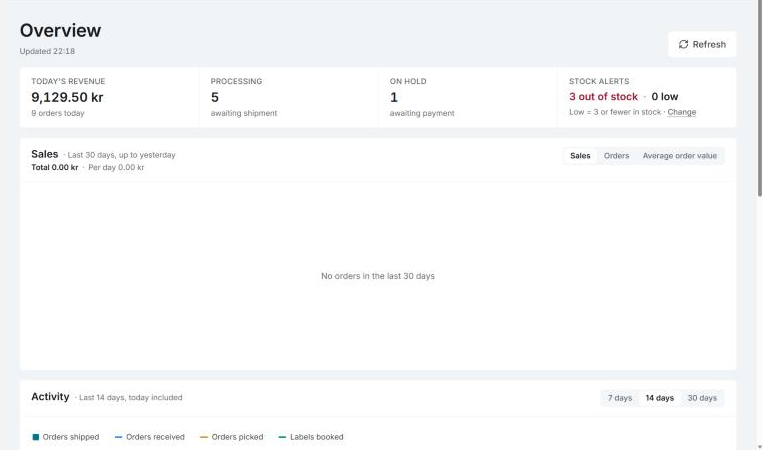
Dashboard is the page you land on when you sign in. It shows numbers for the selected store:
- Today's revenue and the number of orders today.
- Processing: orders awaiting shipment.
- On Hold: orders awaiting payment.
- Stock alerts: how many products are out of stock or low. You change the limits under Stock levels and alerts.
- A chart of the last 30 days, up to yesterday.
- Activity: orders received, orders picked, labels booked and orders shipped per day.
- Recent Orders and Stock Alerts, with products that are out of stock, low or running out soon.
Click Refresh to fetch the numbers again. A new company also sees a checklist here: see The setup checklist.
If the company has no connected shop, the dashboard asks you to connect one instead. Owners and admins get the Connect your shop link.
The store switcher
Next to the breadcrumbs at the top is the name of the store you're working in. Everything you see in Invdash, such as products, orders and customers, is that store's.
If the company has several stores, click the name and choose another one in the Stores list. A test store is marked Test. Owners and admins also see the Manage stores link. Read more in Several stores.
Search and the command menu
Click the search field at the top, or press Ctrl+K (⌘K on a Mac), to open the command menu. There you can:
- Search for products, orders and customers.
- Jump to a page. Type a few letters to search all pages, including the ones under Settings.
- Run an action, such as Export inventory CSV, Force sync or Contact support. Create product is there for WooCommerce and Shopify shops: in an Abicart shop you create products in the shop's own admin. Force sync is shown to owners and admins.
The command menu also lists the keyboard shortcuts for the lists, such as j and k to move down or up a row and Enter to open the active row.
Sync, notifications and display
On the right of the top bar there are three buttons:
- The sync button, Sync from followed by the shop's name, fetches products, orders and customers again. The button is shown to owners and admins. Normally you don't need it: changes come in by themselves. Read more in Sync health.
- Notifications shows things that need acting on: a sync that fails, a store change Invdash couldn't save, a payment that wasn't captured and stock alerts. Click Mark all read when you've gone through them.
- Display opens a panel where you choose Theme (light, dark or the same as the system), Density (Compact, Comfy or Spacious) and Accent. Reset to defaults brings back density and accent. On a phone, Display is in the user menu.
The language, Swedish or English, is changed on your profile under Appearance.
If you can't open a page
If you see the message You don't have access to this page, your page access doesn't include that page, or the page is only open to owners and admins. Ask an owner or admin of the company if you need it.