Booked shipments
The Shipments page lists every label the store has booked: the ones booked for orders, and the parcels created on their own under Create shipment. This is where you find a label afterwards, print it again and follow the parcel.
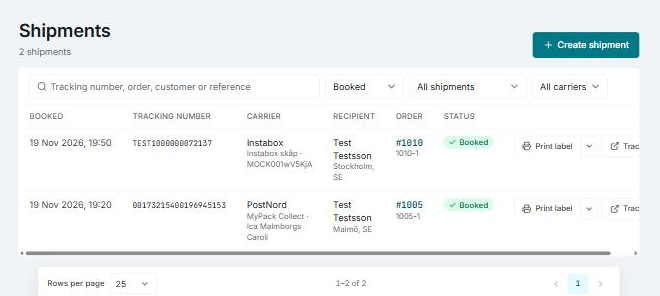
The page covers the store you have selected.
Find a shipment
- Search by tracking number, order, customer or reference.
- Status: the list starts on Booked. Switch to Failed, Cancelled or All statuses.
- Kind: Orders' parcels or Booked on their own.
- Carrier: show one carrier's shipments.
Clear the filters takes you back to where you started.
What the list shows
| Column | Shows |
|---|---|
| Booked | When the label was booked. |
| Tracking number | The carrier's number for the parcel. |
| Carrier | Who carries the parcel. |
| Recipient | Name, city and country. |
| Order | The order number, which opens the order. A parcel booked on its own shows its reference and Booked on its own. |
| Status | Booking, Booked, Cancelled or Failed. Under a failed booking you see what the carrier answered. |
What you can do on a row
- Print label: prints the label again, as long as the shipment is booked. See Printing.
- Track: opens the parcel at the carrier. What the statuses mean is in Tracking.
- Cancel: there for shipments booked on their own that are booked. An order's label is cancelled on the order instead, together with its fulfillment: see Ship an order.
Cancel a shipment booked on its own
- Click Cancel on the row.
- Read what the dialog says about the carrier, and confirm with Cancel the label.
The shipment is always cancelled in Invdash. What happens at the carrier depends on which one it is:
- The carrier can cancel from here. Invdash asks the carrier to cancel the label too. If the carrier already has the parcel it isn't cancelled there, and Invdash says so.
- The carrier can't cancel from here. The label still exists at the carrier. Don't put it on a parcel.
Never use a cancelled label
If Invdash says the carrier didn't cancel the label, it is still valid at the carrier, and a parcel sent with it can be invoiced.
If something doesn't work
- The list is empty. Check that the right store is selected and that the Status filter isn't hiding what you're looking for: choose All statuses.
- A booking says Failed. Read the carrier's answer under the status. The most common causes are an API key that isn't accepted or a shipping agreement set to the wrong system (Test or Live): see Shipping agreements.
- There is nothing to book with. The store has no shipping agreement. An owner or admin adds one under Settings › Freight › Shipping agreement.