Handle returns
Shipments › Returns gathers the store's returns: the ones customers register in the return portal and the ones your team starts from an order. This is where you approve the return, book the return label, receive the parcel and refund the customer.
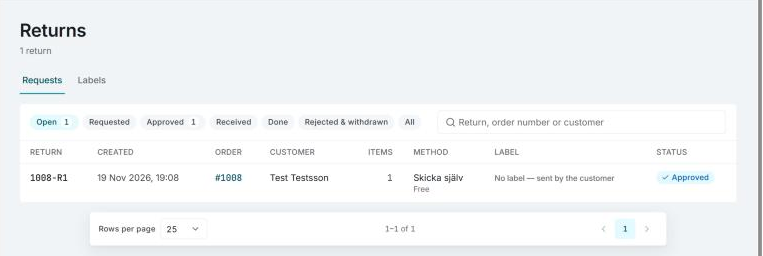
The page has two views: Requests with the returns, and Labels with every return label the store has booked.
A return's path
A return goes through these steps:
- Requested: the customer has registered the return and it waits for your answer.
- Approved: you, or the portal itself, approved the return. The customer sends the parcel back.
- Received: the parcel is back and counted.
- Refunded: the customer has their money back.
- Closed: the return is done and can't be changed.
- Rejected or Withdrawn: you rejected the return, or the customer withdrew it.
The tabs at the top filter the list: Open (requested, approved and received), Requested, Approved, Received, Done (refunded and closed), Rejected & withdrawn and All. You search by return number, order number or customer.
Open a return
Click a row to open the return. It shows the items with their reason and comment, what the customer wants, the return method and any return fee, the address the parcel is sent from, the return label and the return's history. The link The customer's status page shows the page the customer follows the return on. It's there as long as the return portal is open.
Approve or reject
If you chose I approve each return in the portal's rules, new returns wait as Requested.
- Approve: the return is approved. If the return method has a shipment template, the return label is booked at the same time.
- Reject: you write a reason, which the customer sees on the return's page. An approved return can be rejected too.
With Approve at once in the portal's rules, returns are approved automatically, and the history says Approved automatically. One exception: if the customer only showed the postcode and gives another e-mail address than the order's, the return waits as Requested.
The customer is only e-mailed about the approval or the rejection if you have switched on the customer messages Return approved and Return rejected. A booked return label goes along with the e-mail as a PDF.
The return label
In the list, the Label column shows where the parcel is: Label booked, On its way, Arrived, or No label — sent by the customer.
- If the booking didn't go through it says Label failed. Open the return and click Book again.
- An approved return without a label can get one with Book label, even where the customer was to send the parcel themselves.
- Download PDF fetches the label, for example to send it to the customer yourself.
Receive the return
- Open the return and click Mark received.
- Count what came back and enter the number under Received for each item.
- Under Back in stock, enter how many to add to the shop's stock.
- Tick Refund now if the customer should have their money back straight away, and Close the return if nothing more is to be done.
- Confirm.
What's ticked to begin with is set by When a return arrives in the portal's rules, and you can change it for each return. You can also receive a parcel that was never approved.
If the stock couldn't be updated when the return was received, or you left the items out, you do it afterwards with Put back in stock on the return.
Refund
Click Refund on a received return. Invdash suggests an amount from the items that came back, less the return fee if the portal takes it off. You can change the amount.
- Refund through the payment provider: Invdash refunds the order's payment. This needs a payment account connected to the store that can refund the order, see Payments, and only owners and admins can do it.
- Already refunded elsewhere (mark only): you refunded in the shop or by bank transfer. Invdash only records it and moves no money.
When everything is done, click Close return. A closed return can't be refunded or changed afterwards.
Start a return from an order
If the customer got in touch some other way, or a parcel came back unannounced, you start the return yourself.
- Open the order and click Start return under Fulfillment. The button shows once something on the order has shipped.
- Choose items, quantities and reason, what the customer wants and how the parcel comes back.
- Check the address and the customer's e-mail address, and choose whether to e-mail the customer with E-mail the customer.
The return uses the return portal's reasons, resolutions and return methods, so the portal has to be set up, but it doesn't have to be open. The return is approved at once and the label booked if the return method has one. You aren't held to the return window or to the categories the portal doesn't take: Invdash tells you when you make an exception.
The Labels view
Labels lists every return label the store has booked, with a search by tracking number, order or customer. You can also book a return label here without a return request:
- Click Create return.
- Find the order the customer is returning.
- Click Book return label. The label is booked with the store's return template, which you create under Shipment templates. If the store has several, you choose one under Return template.
You do the same from an order with Create return label under Return labels.
If something doesn't work
- The return is approved, but the label couldn't be booked. Open the return and click Book again.
- The return is received, but the refund didn't go through. The return stays as received. Check the payment on the order, then refund from the return.
- No clear answer came back. The refund may have gone through. Invdash checks, and marks the return refunded if it did. Check the payment on the order before you refund again.
- An item wasn't restocked. The shop doesn't keep stock for it, the product isn't in the shop any more, or the stock couldn't be updated. In the last case, try again with Put back in stock.