Boxes
Under Settings › Freight › Boxes you set up the boxes and bags you pack in. A shipment template can book with a box: its size goes with the booking, and its own weight is added when the template weighs the order's products.
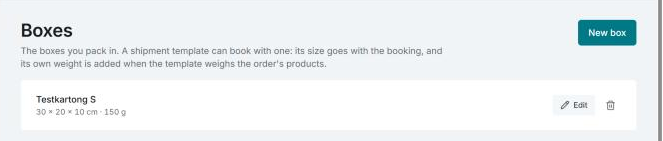
Add a box
- Open Settings › Freight › Boxes and click New box.
- Give it a Name, for example “Small box”.
- Fill in Length (cm), Width (cm) and Height (cm). Each side is a whole number from 1 to 300 cm.
- Fill in Own weight (g): what the empty box weighs, from 0 to 30,000 g.
- Click Save.
How the box is used
- In a shipment template: choose the box in the template's Box field. If you leave the template's own size empty, the box's size is used in the booking. Read more in Shipment templates.
- In the parcel's weight: if the template has Use the order's product weights ticked, the parcel's weight is the products' weight plus the box's own weight. If the template doesn't weigh the products, the template's fixed weight is used and the own weight isn't added.
- When you create a shipment on its own: choosing a box under Parcel fills in the size for you. Read more in Create shipment.
tip
Weigh the empty box with its filling and tape. The booked weight then matches what the carrier weighs more closely.
Edit and delete
Click Edit or Delete on the box. If you delete a box, templates that use it go on booking with their own size and weight.