Payments
With a payment provider connected you can handle an order's payment without leaving Invdash: capture the reserved money when the order ships, refund, and release a reservation. Invdash also keeps track of orders whose payment needs something done.
A few words that come back:
- Reserved: the money is reserved with the customer, but not captured yet.
- Captured: the money has been taken from the customer.
- Left to capture: what's still reserved and can be captured.
Connect a payment provider
You connect the provider the shop's checkout uses, per store, under Settings › Integration › Payment gateways. Only owners and admins can do it.
- Click Connect a provider at the store.
- Choose the Provider and fill in the credentials. You create them in the provider's portal, which the form links to.
- Click the Connect button with the provider's name, for example Connect Klarna.
- Click Test connection at the account. Invdash checks that the credentials work and, if the store has an order paid with the provider, that the order is in the account.
| Provider | Covers | You need |
|---|---|---|
| Klarna | Klarna Payments and Klarna Checkout | Environment (Live or Test (Playground)), API username and API password |
| Kustom | Kustom Checkout, formerly Klarna Checkout | Environment (Live or Test (Playground)), API username and API password |
| Worldline | Worldline Online Checkout, formerly Bambora | Merchant number, Access token and Secret token |
Live and test mode use different credentials. At Worldline, test merchants' numbers start with T.
At each account you see whether it's Verified, Not verified or its Test failed, and whether it's Live or in Test mode. Under More actions you find Edit credentials and Disconnect. If you disconnect, Invdash stops handling the store's payments at the provider, but orders and payment history stay.
A Shopify store's payments go through the shop itself. The account is there from when the store is connected, and there are no keys to enter. You capture, refund and release payments from the order in the same way.
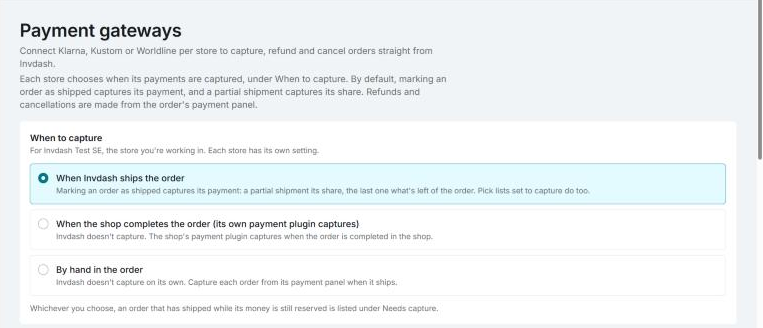
When to capture
On the same page you choose When to capture. Each store has its own setting:
- When Invdash ships the order: marking an order as shipped captures its payment. A partial shipment captures its share, the last one what's left of the order. Pick lists set to capture do too. This is the default.
- When the shop completes the order (its own payment plugin captures): Invdash doesn't capture. The shop's payment plugin captures when the order is completed in the shop.
- By hand in the order: Invdash doesn't capture on its own. You capture the payment from the order's payment panel when it ships.
Capture each payment in one place only. When Invdash captures it, don't also capture it in the shop's admin.
How pick lists capture is set under the pick settings, see Pick lists.
The payment panel on an order
Open the order. The Payment card is shown when the order was paid with a provider Invdash handles. There you see:
- the payment's state, such as Reserved, Partly captured, Captured or Refunded
- Order amount, Captured, Refunded and Left to capture
- Reserved until with a date and how many days are left, as long as money is left to capture
- the provider's reference for the payment, which you can copy to look it up in the provider's portal
- a list of everything that's been done with the payment, with the status Succeeded, Failed, Pending or Not confirmed
The Test mark means the payment is in the provider's test environment: no real money moves.
Only owners and admins can capture or refund payments and release reservations.
Capture
Click Capture, check or change the Amount and confirm. You can capture part of the amount. No more than what's reserved can be captured.
Refund
Click Refund, enter the Amount and confirm. The amount is refunded to the customer via the provider, and this cannot be undone. You can refund at most what has been captured.
Setting an order to the status Refunded doesn't pay any money back. Invdash reminds you of that and offers Refund the payment when money has been captured.
Release the reservation
Release reservation releases the whole reservation before anything has been captured, so the customer isn't charged. This cannot be undone.
If you've already captured part of it, Klarna and Kustom let you choose Release the rest, which releases what's still reserved. What's captured stays captured.
Extend the reservation
With Klarna and Kustom there's Extend reservation as long as money is reserved. It pushes out the day the reservation runs out. Worldline and Shopify have neither Release the rest nor Extend reservation.
The payment in the order list
The Payment column in the order list shows the payment method and the payment's state. If the payment needs something done, the issue is shown instead, for example:
- Needs capture: the goods have left but the money hasn't been captured. If the reservation ends within three days, it says that too.
- Capture failed: open the order and try again.
- Release reservation: the order is cancelled, failed or refunded in the shop, or already captured in full, but money is still reserved.
- Refund not sent: the shop refunded money the provider hasn't paid back.
- Expired before capture: the reservation ran out, so the money can't be captured any more.
- Not confirmed: an action got no clear answer, so it isn't known whether it went through.
Under Filters you find them under Payment issues. Choose Needs capture to see every shipped order with money left to capture, whatever you've chosen under When to capture.
When a payment action fails
Open the order. At the top of the Payment card, a line explains what needs doing.
- Failed: click Retry at the action in the list. Invdash first asks the provider whether the earlier try went through after all, so nothing is done twice.
- Not confirmed: click Check with the provider. The answer says whether the action went through or not.
- Handled somewhere else: if you've settled it with the customer or in the provider's portal, choose Mark as handled outside Invdash. The issue then stops showing until you undo it.
The Payment gateways page also sums up the last 30 days' captures and refunds per account, and lists actions that need attention, with Retry.
If something doesn't work
- The provider didn't accept the account's credentials. Check them under Settings › Integration › Payment gateways, and that you've chosen the right environment.
- "The credentials work, but order … isn't in this Klarna account." (with the provider's name) The store's checkout may use another account or environment (Live or Test).
- The provider can't find the payment. Check that the order was paid with that provider and that the connected account is the shop's.
- "Payment won't be captured on ship: no payment account is connected." Connect the provider as described above.
- "The reservation has expired. What's left can't be captured." Settle it with the customer outside Invdash.
- "Another payment action is already in progress for this order." Wait for it to finish.
- "Too many payment actions in a short time." Wait a minute and try again.