Pick lists
A pick list gathers the items of several orders into one walk through the warehouse. You pick on a phone, tablet or computer, ideally with a barcode scanner, or on a printed list. When the pick is finished, Invdash creates fulfillments for the orders and can book labels, mark as shipped and capture the payment in the same step.
Create a pick list
- Open Orders and bring up the orders you want to pick, for example the Processing tab.
- Select the orders with the checkboxes and click Pick 5 selected (the button shows the number). If you select none, the button reads Pick these orders and takes the whole list, after you've confirmed with Create pick list.
- The pick list opens straight away.
A pick list takes up to 100 orders. Cancelled, refunded and failed orders, and orders with nothing left to pick, are left out.
Every pick list is under Pick lists, which you reach from the Orders page. There you see each list's status (open, completed or cancelled), its number of orders and how many units are picked.
Pick
On the left are the rows to pick, one per item, with location and quantity. Choose a row to see it on the right, with its image, Location, SKU and the orders it belongs to. When you pick several orders at once, each order gets a Bin, so you can sort the items per order already on the cart.
- Go to the location and take the item.
- Count the units: scan the barcode once per unit, or use + and −. A product with no barcode or SKU is counted with the buttons.
- Click Confirm pick. With the setting Confirm at full count, the row confirms by itself when the last unit is scanned.
- Carry on with the next row.
If you confirm fewer than the listed quantity, the row becomes a partial pick, and Invdash asks first if the setting Warn on a partial pick is on.
If an item can't be found
Click Can't find it and confirm with Mark as missing. Invdash saves what you've picked, takes the missing units off the stock as lost, and the order waits for new stock. If the item turns up, click Found it and it's put back in stock.
More actions
Under More actions you can switch the scan sound on and off for your own device, and vibration if the device can vibrate, choose Print to pick on paper, and Cancel list. A cancelled list is closed without creating any fulfillments, so put back what you've already picked.
Finish the pick
Click Finish picking when you're done, and confirm with Finish. The dialog says what will happen:
- Fulfillments are created for the picked units, one per order. Unpicked rows stay open on their orders.
- Counted but not confirmed isn't included. Confirm the rows first if they should be.
- If no rows are confirmed at all, Finish creates fulfillments for every unit on the list. Invdash asks you to confirm that specifically.
- Also book labels, each order with its delivery method's shipment template: tick the box to book one label per fulfillment. The box is pre-ticked if the pick settings say so.
What happens after that is decided by the pick settings: the fulfillments can be marked shipped, the payment captured and the orders completed in the shop. You see how far it has come while it runs.
Afterwards the result is shown per order, for example Label booked, Shipped, Payment captured or what needs attention. An order that should have got a label but didn't isn't marked shipped until it has one. A completed list has the button Print labels, which prints the labels in the order of the bins.
Each label is booked with the carrier, which charges for it. Check that the orders' delivery methods have the right shipment template before you let the pick book labels.
Pick settings
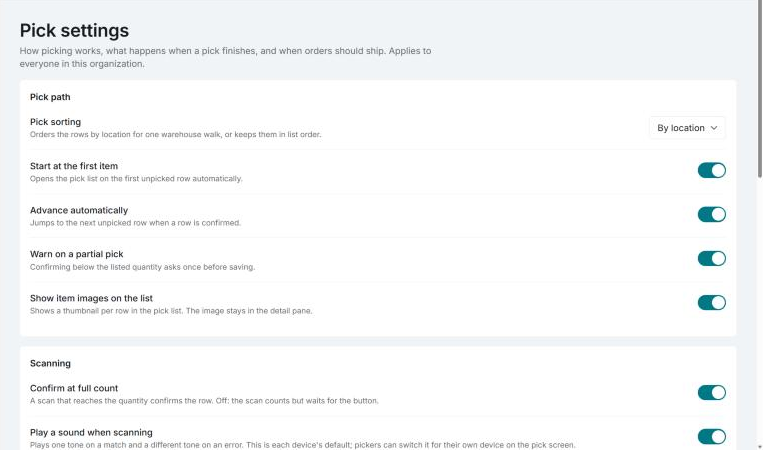
Under Settings › Fulfillment › Pick settings you decide how picking works. The settings apply to everyone in the organization, and only owners and admins can change them. Changes are saved straight away.
Pick path
- Pick sorting: By location orders the rows for one warehouse walk, List order keeps the list's order.
- Start at the first item: opens the pick list on the first unpicked row automatically.
- Advance automatically: jumps to the next unpicked row when a row is confirmed.
- Warn on a partial pick: asks once before a pick below the listed quantity is saved.
- Show item images on the list: shows a thumbnail per row.
Scanning
- Confirm at full count: a scan that reaches the quantity confirms the row. Off: the scan counts but waits for the button.
- Play a sound when scanning: one tone on a match and a different tone on an error.
- Vibrate when scanning: on devices that support it (Android).
Sound and vibration are defaults. Each picker can change them for their own device on the pick screen.
Completing picks
- Partially picked orders: Create a partial fulfillment for what was picked, or Leave the order for a later pick.
- Book labels when a pick finishes: pre-ticks the label box when a pick is finished. The picker can untick it for a single pick.
- Mark shipped when a pick finishes: steps each fulfillment to shipped. The order is completed in the shop only once everything has shipped. In stores that capture when Invdash ships the order, the payment is captured then too.
- Capture payment when a pick finishes: captures the payment without marking anything shipped. The option is there when Mark shipped when a pick finishes is off.
- Amount to capture: shown when Capture payment when a pick finishes is on. Choose Capture the fulfillment amount or Capture everything still reserved. With partial fulfillments the latter also captures items that weren't picked, so the customer pays for them before they ship.
At the top of the card, When a pick finishes sums up what your choices lead to, and under the options it says if a store has no default template, shipping agreement or payment provider. Read more about the payment in Payments.
When orders ship
- Ship orders: The same working day, The next working day or within a number of working days. The time is counted from the working day the order is paid: Monday to Friday, except public holidays and Midsummer, Christmas and New Year's Eve.
- Cut-off time: orders paid at that time or later count from the next working day.
These two drive the Waiting column and the Shipping deadline filter in the order list, where orders that should have shipped are shown as late.
If something doesn't work
- "Scanned code doesn't match any item on this list." The item isn't on the pick list, or the product has another barcode or SKU in Invdash.
- "Already 2 of 2. Put the extra unit back." You've scanned more than the row needs.
- "The pick list is closed, so the count wasn't saved." Someone has finished or cancelled the list.
- "The connection dropped while finishing." The list may have finished anyway: check its orders before doing anything again.
- "No label: no shipment template" or "the delivery method isn't booked by Invdash" in the result: the order got no label. Book it from the order, see Ship an order.