Order details
When you click an order number on the Orders page, the order opens in a panel over the list. There you see everything about the order and do most of the work on it: pick, ship, handle the payment and write notes.
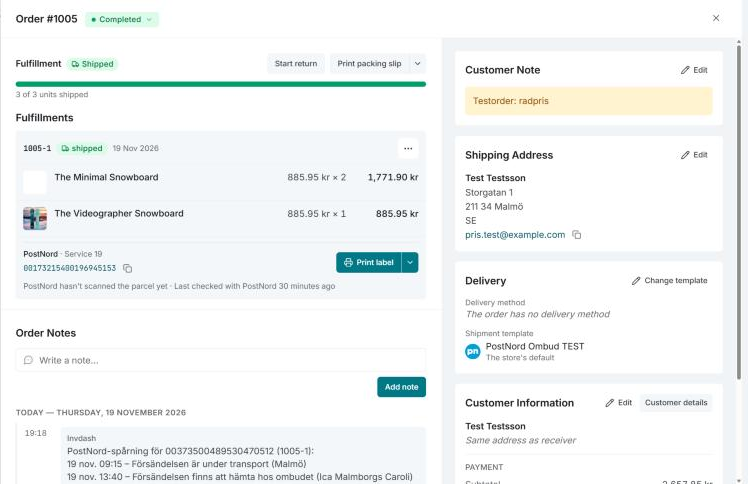
What the panel shows
At the top are the order number and the order's status. The rest is laid out like this:
- Fulfillment: how much of the order has shipped, been picked or packed, and what's left. Under Unfulfilled are the items not picked yet, and under Fulfillments each parcel with its items, its label and its tracking. You ship the order from here, see Ship an order. If the order has returns, they show under Returns.
- Order Notes: the order's notes, newest first, grouped by day. A note that was sent to the customer is marked "sent to customer".
- Customer Note: what the customer wrote when the order was placed.
- Shipping Address: the receiver's name and address, with a phone number and email you can copy.
- Delivery: the Delivery method, which is what the customer chose at checkout, and the Shipment template the order is booked with. Under the template it says where it comes from, for example The delivery method's template or The store's default. If the customer chose a delivery window or add-ons at checkout, they're shown too.
- Customer Information: who was billed, and the order's amounts: subtotal, discount, shipping, fees, VAT and Total incl. VAT. Coupons, the order date, the payment method and the transaction ID are here too. Customer details opens the customer.
- Payment: shown when the order was paid through a payment provider connected to the store. See Payments.
- Return labels and Customer messages: shown when the store has a return template, and when a message has been sent for the order.
Change the shipment template for an order
Click Change template under Delivery if this one order should be booked with another template. Choose Automatic: the delivery method's template or the default to go back. The change applies to labels booked from now on. The shop's order stays as it is.
Read more about templates in Shipment templates.
Change the status
Click the status beside the order number and choose a new one. The statuses that close an order are kept apart under Closing, and you confirm them first.
- Cancelled stops fulfillment immediately. Whether stock is restored depends on the shop's settings.
- Refunded only changes the order's status. No money goes back. If money has been captured from the customer's payment, Invdash asks whether you want to Refund the payment instead, or Mark as refunded only.
Which statuses you can choose depends on the shop:
- WooCommerce: every status.
- Shopify has no statuses to set. An order there is paid or not, shipped or not, cancelled or not. So you can only choose Processing (marks an order waiting for its payment as paid, and is only offered while the order is On Hold), Completed (ships what's left of the order, without tracking) and Cancelled (cancels the order and restocks its items, without refunding).
- Abicart: the status is shown, but changed in Abicart's own admin.
Add a note
- Write in the field Write a note... under Order Notes.
- Click Add note.
The note is saved on the order in the shop and is internal. A note can be up to 5,000 characters. In a WooCommerce store these are the shop's own order notes. In a Shopify store Invdash keeps the notes on the order, and they also show on the order's page in Shopify's admin.
In a WooCommerce store you can tick Note to customer. The button then reads Send to customer, and the shop emails the note to the customer. The next note is internal again unless you tick the box anew. In a Shopify store a note can't be sent to the customer.
Order notes are available for WooCommerce and Shopify, not for Abicart.
Customer Note is something else than the order notes: it's the customer's own message, which the customer sees in their order and in the shop's emails. How to change it is described in Edit an order.
Print a packing slip
Click Print packing slip at the top of Fulfillment. The packing slip lists the order's items, addresses and amounts.
If the order ships in several parcels, each fulfillment has a button of its own, Packing slip, which lists only what's in that parcel.
If you have a printer connected to Invdash the packing slip can be sent there, otherwise it prints from the browser. See Printing.
If something doesn't work
- "This order wasn't found. It may have been deleted in the shop." The order is no longer in the shop.
- "This order is in another store." Another store was chosen in another tab or window after the order was opened. Click the button to switch back to the order's store.