The customer got no customer message
A customer says they never got an e-mail Invdash should have sent: that the order has shipped, that the parcel is ready for pickup or that the return is approved. Start on the order, which shows what Invdash actually did, and then go on to the settings.
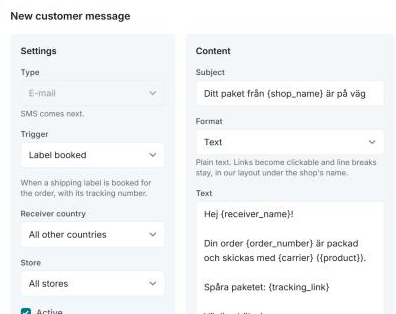
Customer messages are sent by e-mail. How to create them is described in Customer messages.
1. Look at the order
Open the order from the Orders page. Once Invdash has tried to send something for the order, the order's panel has the section Customer messages. Each row shows the event, the address the e-mail went to, the time and a status:
| Status | Meaning | What to do |
|---|---|---|
| Sent | The e-mail left Invdash for the address on the row. | Check that the address is spelt right, and ask the customer to look in their spam folder. |
| Not sent | Invdash sent nothing. The reason is shown under it. | See below. |
| Failed | The mail service didn't take the e-mail. Its own error message is shown under it, as it came. | Check the customer's address. Contact support with the text if the address looks right. |
| Scheduled | The message hasn't been sent yet. | Wait. |
The reasons under Not sent:
- "The order has no e-mail address": the order has no e-mail. Add it on the order, see Edit an order, and the customer gets the next message. The message for the event that has already passed isn't sent afterwards.
- "Customer messages aren't sent from this environment" or "No mail transport is set up": contact support.
The customer gets each message once per event. The same event never gives a second e-mail.
If there is no Customer messages section, or the event isn't in it, Invdash never tried to send. Then it's one of the next two sections.
2. Is there an active message for the event?
Open Settings › Fulfillment › Customer messages. There are no messages until you create them, and an event without a message sends nothing.
For the trigger in question, check that:
- The switch on the row is on. A message that is switched off isn't sent.
- Store matches the order's store, or is All stores.
- Receiver country matches the order's delivery country, or is All other countries. If you only have a message for Sweden, a customer in Norway gets no e-mail. If the order has no delivery country, the billing address's country is used.
Use Send a test to me to see that the e-mail arrives and looks right. If you get "The test couldn't be sent – no e-mail is set up here.", contact support.
3. Did the event happen in Invdash?
A message is sent when its trigger happens, and the triggers belong to different places:
- Order packed, Order shipped and Label booked are sent when you do it in Invdash: mark a fulfillment packed or shipped, or book a label. An order completed directly in the shop's admin gives Order complete instead.
- Order received, Order complete and Order cancelled follow the order's status in the shop. Order received is sent "when the order is paid and goes on to packing", so not for an order that is waiting for payment.
- Out for delivery, Ready for pickup, Pickup reminder and Parcel delivered come from the carrier's tracking of a label booked in Invdash, at most half an hour late. If you ship without a label from Invdash, there is no tracking to go by. See Tracking.
- Refund is sent "when a refund goes through at the payment provider".
- Return requested goes to the address the customer gave in the return portal, which may differ from the order's. If a return label is booked when the return is approved, it goes along in Return approved, and Return label created isn't sent for it.
A status change in the shop only counts while it is fresh. If Invdash reads in an order whose latest change in the shop is more than six hours old, no Order received, Order complete or Order cancelled is sent for it. That applies when a shop is connected and its history is read in, and when the sync has been paused or stood still for a long time. Check Sync health if the messages don't go out for new orders.
4. The customer got the shop's e-mail instead
The shop often sends its own e-mails about the same thing, and Invdash holds some of them back when one of your customer messages shows the tracking:
- WooCommerce: the tracking number is written as a note on the order. It goes to the customer, unless one of your messages for Label booked, Order packed or Order shipped shows the tracking number or the tracking link. Then the note is private.
- Shopify: Shopify sends its own shipping confirmation with the tracking, unless one of your messages for the same three triggers shows it.
If you have such a message that only applies to one country or one store, this also only applies there. Read more under the shop's own e-mails in Customer messages.
5. The customer's reply doesn't arrive
Messages are sent in the shop's name, and replies go to the company's e-mail address. If the top of the Customer messages page says "Sent as … Add your company e-mail so customers can reply:", the address is missing. Add it under Settings › Company › Information, see Company information.
If it still doesn't work
Write to support and include:
- the company's name and which store it's about
- the order number and which event it's about (for example Order shipped)
- what the Customer messages section on the order shows: the status and the text under it, word for word
- the order's delivery country
- roughly when the event happened.
See Contact support.