Sync health
The Sync health page shows how the connection between Invdash and your shop is doing: when products, orders and customers were last synced, whether the shop answers right now and whether anything has gone wrong. This is where you go when something in Invdash doesn't match the shop.
Open the page
Open Settings › Integration › Sync health. The page shows the active store. For a WooCommerce store you also get here with the Sync details link on the store's row under Stores.
The page refreshes by itself. Click Refresh to also run the check against the shop once more.
The verdict at the top
At the top are the store's name and a verdict. When all is well it says Syncing normally and when the store last synced. Otherwise a box shows what's wrong and what you can do.
| Verdict | Meaning | What to do |
|---|---|---|
| Syncing normally | Everything works. | Nothing. |
| Importing … or Waiting for first sync | The store is new and the first import is running: products, then orders, then customers. | Wait. You can use Invdash meanwhile. |
| Sync is paused | Nothing syncs while the store is paused. | Resume it from the Stores page. |
| Can't reach the store | The shop didn't answer, or didn't accept the keys. | The box says why. See Connect a WooCommerce shop for what the results mean. For a Shopify store the box says what to do in Shopify. |
| … sync failing | The latest run failed. The reason is listed under Failures. | Sync again. If it keeps failing, run Test connection on the Stores page. |
| … sync last ran … | Syncs normally run every few minutes, but none has succeeded for over an hour. | Sync by hand to catch up. |
| Never synced | The first sync hasn't completed. | Run Test connection on the Stores page. |
| … orders missing (last 48 h) | WooCommerce has orders that Invdash doesn't. | Click Sync orders now. |
| Webhooks: Disabled in WooCommerce · re-enabling failed | WooCommerce switched the webhooks off and Invdash couldn't turn them back on. | Check that the API key has Read/Write access. See Webhooks. |
| Webhooks: … failed in the last 24 h | Some events couldn't be processed. | Nothing is lost: the regular sync fetches the same changes. |
| Plugin: Not reachable, Too old to sync or update to … | The Invdash plugin doesn't answer, is too old or has a newer version. | See The Invdash plugin for WordPress. |
If there are several problems, the most serious one is shown.
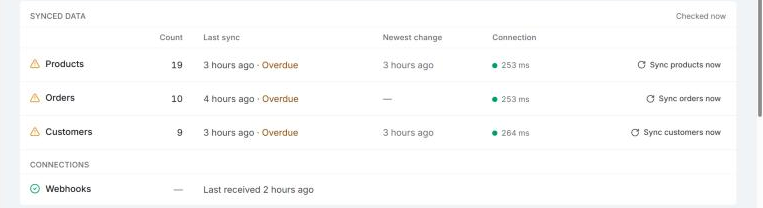
Synced data
The table has a row for Products, one for Orders and one for Customers:
- Count: how many Invdash holds.
- Last sync: when the list was last synced. Syncs normally run every few minutes, and Overdue means more than an hour has passed.
- Newest change: the newest change in the shop that the sync has seen. If the shop only has guest customers, the customers row can be empty.
- Connection: a check against the shop that runs when the page opens, for WooCommerce and Shopify stores. Invdash tries reading products, orders and customers one by one. A green dot and a response time mean the shop answers. Otherwise it says what went wrong.
Under Connections you see the Invdash plugin with its version (WooCommerce only) and Webhooks with when an event was last received.
Sync now
Owners and admins have a button on each row: Sync products now, Sync orders now and Sync customers now. The button fetches the list at once instead of waiting for the next run. It isn't there while the store is paused.
If you're told a sync is already running for the store, wait a minute and try again.
Checks
Under Checks are the recurring checks that nothing has gone missing. The first three are made for WooCommerce stores only:
- Orders vs WooCommerce compares the number of orders in the last 48 hours in WooCommerce and in Invdash. OK means they match, otherwise it says how many are missing.
- WooCommerce webhooks shows how many webhooks point at Invdash. If WooCommerce has switched one off, Invdash turns it back on and notes which ones.
- Pending orders re-check fetches orders that have been waiting for payment for a while once more, so a payment that went through isn't missed.
- Payments is shown only when the payment provider refuses the store's key. Payment status then isn't updating, and the row has a link to Payment gateways where you change the key.
- Failures shows the number of unresolved failures. They're listed right below.
Failures
Each failure shows which sync it concerns, an explanation in plain words and when it happened. Failures that repeat are grouped into one row with a count.
- A failure when Invdash reads from the shop has the Sync … now button beside it. Once a later sync succeeds, the failure counts as resolved.
- A failure when Invdash writes to the shop, such as a product change the shop rejected, says which product it concerns. Fix the issue in the shop and save the product again.
- If it says the stock didn't reach the shop after another change, the shop may show a different number than Invdash. Check the product's stock, and save it again if it's wrong.
- A shipment the shop didn't take is tried again with the next few order syncs. If it keeps failing, mark the order sent in the shop's admin.
At the bottom you see how many runs were made in the last 24 hours. Resolved failures shows failures that a later successful sync superseded, and Show job log shows the latest runs with their status.
Sync from the top bar
Owners and admins also have a sync button in the top bar (Sync from WooCommerce, or the platform the store is on). It fetches products, orders and customers from the active store in one go. Use it when you know something has just changed in the shop and don't want to wait.