Stock doesn't match
Invdash shows a different stock quantity from the shop, or a number you changed wasn't saved. Start with the part that fits your problem. The causes run from the most common to the least.
The stock lives in the shop. Invdash reads it from there and sends your changes there, so the shop's number is always the one a customer can buy from.
A change you made wasn't saved
1. The change hasn't been sent yet
In Inventory, the numbers are saved together to begin with: each changed field gets a small dot, and a bar at the bottom of the page says how many unsaved stock changes you have. Nothing is sent to the shop until you click Save. How to save each field right away instead is described in Changing stock.
2. The field is marked Not saved
Then the shop didn't take the change. The reason is in the bar at the bottom, where you can also choose Retry. This is what the messages mean:
- "The stock changed in the store while you were editing and is now 12. Check the quantity and save again." An order or a colleague changed the stock after the list was read in. Nothing was saved. Start from the shop's number in the message, correct your number and save again.
- "Stock isn't tracked for this product in WooCommerce." (or your platform). The product doesn't track stock in the shop. Turn on Manage stock in the product panel or in the shop.
- "WooCommerce didn't take the change, so nothing was changed." The shop didn't answer or refused the change. Try again in a little while. If it continues, run Test connection on the store's row under Settings › Integration › Stores.
- "The store's API key isn't allowed to change products. Give it Read/Write access in WooCommerce." The WooCommerce key can only read. Create a Read/Write key, see Connect a WooCommerce shop.
- "Too many saves in a row. Wait a minute and try again." Wait a minute.
- "The stock can change by 100,000 at most in one go. The number was put back." Check that you didn't mistype.
If the field says Someone else is editing, a colleague is working on the same stock right now.
Invdash and the shop show different numbers
1. Look at the right store and refresh
If the company has several stores, each store has its own stock. Check the store's name in the top bar.
The number in the list is a copy that was read in a while ago. A sale or a change in the shop's admin normally arrives shortly, but to be sure, click the sync button in the top bar, or Sync products now under Settings › Integration › Sync health. Both are there for owners and admins.
2. Read Sync health
Open Sync health and look at the verdict at the top and at the Failures list:
- Sync is paused or Can't reach the store: no changes go either way until that is fixed.
- Product sync failing or Product sync last ran …: Invdash hasn't got the shop's latest numbers. Click Sync products now.
- "Invdash's stock didn't reach the shop after another change, so the shop may show a different number than Invdash. Check the product's stock, and save it again if it's wrong." The failure says which product it's about. Open it, check the number and save it once more.
- "WooCommerce rejected this change. Fix the issue in WooCommerce, then save the product again." A product change from Invdash didn't go through in the shop.
3. See what changed the stock
Open the product and go to the History tab. Each row shows what changed the stock and who did it: for example Sale, Manual change, Recount, Returned to stock, Supplier import or Changed in the shop. The latest row often explains the difference.
In an Abicart store the product panel can't be opened, so the tab isn't available there.
4. What differs between the platforms
- Shopify. Shopify keeps stock per location, Invdash one number per product. Invdash reads and sets the stock at the location you chose when the store was connected. If the shop has goods at several locations, Invdash only shows that one location's number. See What Invdash does with a Shopify shop.
- WooCommerce. Stock changes when an order is placed arrive at once through the Invdash plugin and the shop's webhooks. If Sync health says the plugin is Too old to sync or Not reachable, or the store's webhooks say Action required, the changes only arrive with the scheduled sync.
- Abicart. Products are edited in Abicart's own admin. From Invdash, only the stock is changed.
5. The number is right, but the status differs
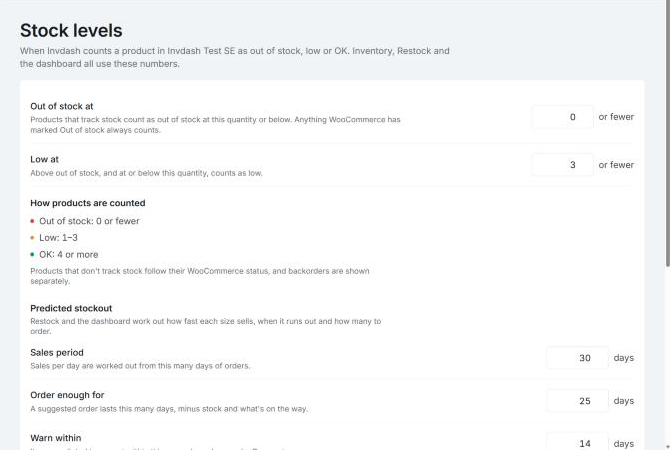
Whether a product counts as out of stock or low is decided in Invdash by the limits under Settings › Inventory › Stock levels, not by the shop's own settings. With Out of stock at set to 2, a product with 2 in stock counts as out of stock in Invdash although the shop still sells it. See Stock levels and stock alerts.
A stock below zero isn't an error: it means orders are waiting for units you don't have.
If it still doesn't work
Write to support and include:
- the company's name and which store it's about
- the product's name and SKU, and the variation if it's a variable product
- the number in Invdash and the number in the shop, and when you saw the difference
- the error message word for word, if you got one
- the latest rows under History for the product.
See Contact support.