Customer messages
Customer messages are e-mails Invdash sends the shop's customers when something happens to their order: when the label is booked, when the parcel is ready for pickup, when a return is approved and so on. You decide which events give an e-mail and write the text yourself.
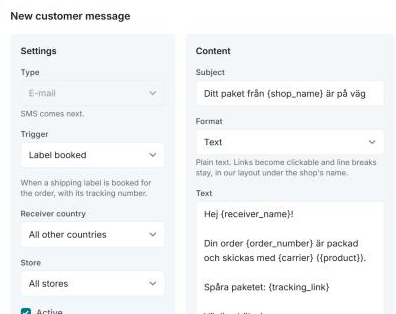
There are no messages until you create them, and an event without a message sends nothing. Messages are sent by e-mail. Only owners and admins can create and change them.
Create a message
- Open Settings › Fulfillment › Customer messages and click New message.
- Choose the Trigger: the event that sends the message. The trigger can't be changed afterwards.
- Choose the Receiver country. All other countries covers every country that has no message of its own.
- If you have several stores, choose the Store, or All stores.
- Write the Subject and the Text. A new message starts with a suggestion you can rewrite.
- Leave Active ticked if the message should start going out straight away, and click Save.
If there are several messages for the same trigger, the most specific one is sent: a store's own before every store's, a country's own before every country's. That way you can have a Swedish message for Sweden and an English one for all other countries.
In the list you switch a message on and off with the toggle on its row, without deleting it.
The triggers
About the order:
- Order received: when the order is paid and goes on to packing.
- Order packed: when a fulfillment is marked packed.
- Label booked: when a shipping label is booked for the order, with its tracking number.
- Order shipped: when a fulfillment is marked shipped.
- Order complete: when the order is marked complete in the shop.
- Order cancelled: when the order is cancelled in the shop.
- Refund: when a refund goes through at the payment provider, with the amount.
From the carrier's tracking:
- Out for delivery: when the carrier says the parcel is out for delivery.
- Ready for pickup: when the parcel has arrived at its service point.
- Pickup reminder: if the parcel is still waiting at the service point five days after it arrived.
- Parcel delivered: when the parcel has been delivered or picked up.
About returns:
- Return label created: when a return label is created from the order, or booked for a return under Shipments › Returns. The label goes along as a PDF.
- Return requested: when a customer requests a return in the return portal. It goes to the e-mail address they gave there.
- Return approved: when a return is approved, by you or automatically. A return label booked with the approval goes along as a PDF in this e-mail, and Return label created isn't sent for it.
- Return rejected: when you reject a return, with the reason you gave.
- Return received: when you mark a return as received.
The customer is told once per event.
The return portal sends no e-mails of its own: the return messages above are what tell the customer how the return is going. See Set up the return portal.
The text and the tags
Under Format you choose how the message is written:
- Text: plain text, up to 10,000 characters. Links become clickable and line breaks stay, in Invdash's layout under the shop's name.
- HTML: you write the whole e-mail yourself and Invdash puts no layout around it. Scripts, forms and frames are removed.
With Insert a tag you add details that are filled in when the message is sent. A tag is written in braces, {receiver_name} for example. The tags are:
- Receiver's name, Order number and Shop name
- Carrier, Carrier product, Tracking number, Tracking link and Pickup point
- Refunded amount
- Return number, Returned items, Return method, Link to the return, Link to the return portal and Reason for rejection
A tag the event has no value for is left empty, the pickup point on a home delivery for example.
Preview shows the message with sample order details, and Send a test to me sends it to your own e-mail address.
The sender
Messages are sent in the shop's name. The top of the page says who the messages are sent as and where replies go. Replies go to the company's e-mail address, which you enter under Settings › Company › Information; see Company information. Without it, customers can't reply to the e-mails.
The shop's own e-mails
The shop often sends e-mails of its own, and it helps to decide who says what.
- Tracking numbers in WooCommerce. When a label is booked, Invdash writes the tracking number as a note to the customer on the order, and WooCommerce e-mails it to the customer. If one of your messages for Label booked, Order packed or Order shipped shows the tracking number or the tracking link, the note becomes a private one instead, so the customer isn't told the same thing twice.
- Tracking numbers in Shopify. When the fulfillment is marked shipped, Shopify sends its own shipping confirmation with the tracking. If one of your messages for Label booked, Order packed or Order shipped shows the tracking number or the tracking link, Shopify doesn't send that confirmation.
- Refunds in WooCommerce. The refund is added to the order too, and WooCommerce then sends its own e-mail about it. If you only want Invdash's message, turn that e-mail off under WooCommerce → Settings → Emails.
Delete a message
Click the bin on the row and confirm with Delete. What was already sent stays on the orders.
If something doesn't work
- There's a message for this trigger, store and country already. Pick another country or store, or edit the message that's there.
- The test couldn't be sent. Try again in a moment, and contact support if it goes on.
- The customer got no e-mail about the return. Check that the message for the event exists and is switched on for the order's store and country.