Printing doesn't work
A label, pick list or packing slip doesn't come out of the printer, ends up in the wrong place or looks wrong. Start with the message Invdash shows when you click the print button: it says how far the print job got.
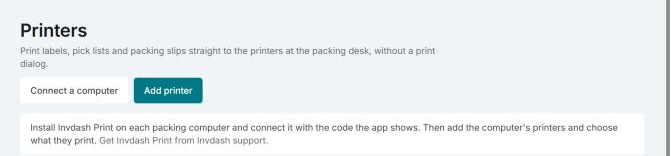
How printing is set up is described in Print labels and packing slips.
Nothing prints
1. "Sent. It prints when … is on."
The print job is waiting for the packing computer, which isn't in contact with Invdash right now.
- Check that the packing computer is on and that the Invdash Print app is running.
- Look at the Status page in the app:
- Connected: the computer is in contact, and the print should come.
- Can't reach Invdash: the computer has no contact with the internet or with Invdash. The app tries again by itself and follows the computer's own network settings.
- Not connected: the app shows a code. The computer has been disconnected and needs connecting again, see point 4.
- In Invdash you see the same thing under Settings › Fulfillment › Printers, in the Computers list: the computer is Online, or it says when it was last seen.
The print job waits for 30 minutes. If the computer comes on within that time, it prints. Otherwise it isn't printed, and you have to print again.
2. "… couldn't print it"
The computer got the print job but the printer didn't take it. The reason the app gave is shown under the message.
- Check that the printer is switched on, connected to the computer and has paper or labels.
- Open Activity in Invdash Print. The print job is listed there as Failed.
- "The printer “…” isn't on this computer any more." means the printer has been removed or renamed on the computer. Click Update printers under Printers in the app, and add the printer again in Invdash if it has a new name.
3. Try a test print
Two tests show where the fault is:
- Test print under Printers in Invdash Print prints straight from the computer. If that doesn't work, the fault is with the printer or the computer.
- Test page on the printer's row in Invdash sends a print all the way from Invdash. If the test print in the app works but the test page doesn't, the fault is in the connection between Invdash and the computer.
4. The computer is no longer connected
If the app shows a code under Connect this computer, the computer isn't connected to the company. That happens when someone has chosen Disconnect in Invdash or in the app, or has changed the Invdash address in the app's settings. When a computer is disconnected in Invdash, its printers are removed from there too.
An owner or admin connects the computer with the code and adds the printers again. The code works for 15 minutes: "No computer is waiting with that code." and "The code has run out." mean you should enter the code the app shows right now.
The print ends up in the wrong place
- The document opens in the browser instead of printing. No printer is chosen for that kind of document. Open the printer under Settings › Fulfillment › Printers and tick the right row under Default printer for: Shipping labels, Pick documents (pick lists and packing slips) or Other documents.
- The document goes to a different printer from your colleague's. If you have chosen printers of your own under My printers, your documents go there instead of to the organization's default. Choose The organization's default there if you don't have a packing desk of your own.
- You want to choose the printer for a single print. Click the arrow beside the print button and choose the printer, Open PDF or Print in the browser.
- The label doesn't print by itself when the shipment is booked. Tick Print labels as soon as they're booked on the printer that is the default for shipping labels.
The print looks wrong
1. The wrong format on the printer
Open the printer in Invdash and check Format:
- Label 10 × 19 cm for label printers.
- A4 for ordinary printers.
- Label 10 × 19 cm ZPL only for Zebras and other printers that understand ZPL.
If the form says "Invdash Print doesn't recognise this as a ZPL printer. Choose ZPL only for Zebras and other printers that understand ZPL.", choose Label 10 × 19 cm instead. If it says "This looks like a Zebra – choose Label 10 × 19 cm ZPL for the sharpest labels.", you should switch to ZPL.
2. Zebra: the label is offset or blurry
- Click Calibrate under Printers in Invdash Print. Do it after every change of label roll.
- Check Resolution for ZPL for the printer in the app. It is normally set to Automatic. If the label comes out too large or too small, the resolution may be wrong for the printer.
- Make a Test print. It says "This line is 50 mm long when the size is right:" and "The frame sits just inside the label's edges." Measure the line and look at the frame.
3. Other printers: wrong size or a cropped label
With the formats Label 10 × 19 cm and A4, the document is printed as a PDF through the printer's driver. The size is then decided by the paper size set for the printer on the computer. Check that it matches the labels in the printer.
Printing from the browser
Without connected printers the label opens as a PDF in a new tab, and you print with the browser's print dialog.
- "Couldn't print. Check that the browser allows printing." is shown when the browser couldn't open the print of a pick list.
- Print label is only there while the shipment is booked. A failed or cancelled booking has no label, see The label wasn't booked.
Update available
If the computer in Invdash says Update available, there is a newer version of Invdash Print. The app doesn't update itself: download the new version and install it on the computer.
If it still doesn't work
Write to support and include:
- the company's name
- the computer's name in Invdash, whether it runs Windows or Mac, and the Invdash Print version shown on the computer's row
- the printer's make and model, and which Format it has in Invdash
- which document it's about (label, pick list or packing slip) and the order number
- the message in Invdash word for word, and what Activity in the app shows
- a picture of the print, if it looks wrong.
See Contact support.