Stock levels and stock alerts
Under Settings › Inventory there are two pages that belong together. Stock levels decides when Invdash counts a product as out of stock, low or OK. Stock alerts decides whether and how you are told when something runs out.
Both apply to the store that is selected, so if you have several stores you set them for each store. Only owners and admins can change the settings. Members who have access to Settings can see them.
Stock levels
Open Settings › Inventory › Stock levels.
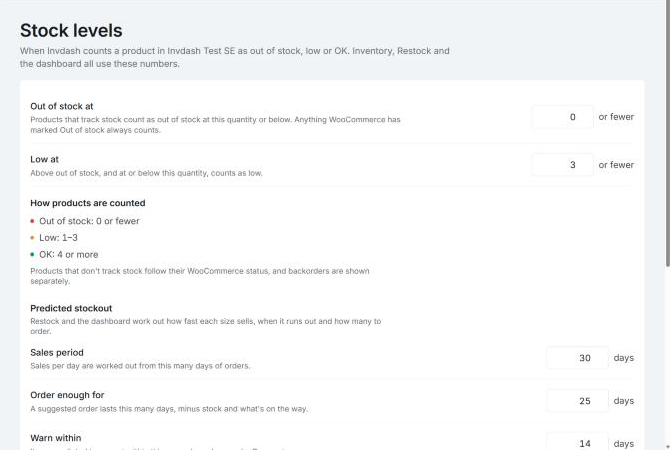
- Out of stock at: products that track stock count as out of stock at this quantity or below. Anything the shop itself has marked as out of stock always counts.
- Low at: above out of stock, and at or below this quantity, counts as low.
The defaults are 0 and 3. A product is then out of stock at 0 or fewer, low at 1–3 and OK from 4. Under How products are counted you see what your numbers mean.
The levels are used in Inventory, Restock and on the dashboard. Products that don't track stock follow their status in the shop, and backorders are shown separately.
Low has to be higher than out of stock, and out of stock can't be below 0.
Predicted stockout
On the same page you set how Invdash works out how fast an item sells, when it runs out and how many to order:
- Sales period: sales per day are worked out from this many days of orders. The default is 30 days.
- Order enough for: a suggested order lasts this many days, minus stock and what's on the way. The default is 25 days.
- Warn within: items predicted to run out within this many days count as running out soon. The default is 14 days.
The page shows a worked example with your numbers. How the suggestion is worked out is described under Restock.
Click Save when you are done.
Stock alerts
Open Settings › Inventory › Stock alerts.
- Turn on Stock alerts.
- Choose a level under Tell when an item:
- Is predicted to run out, runs low or sells out: also tells of items predicted to run out within your warning window, at the rate they sell. An item with enough on its way from suppliers isn't told of.
- Runs low or sells out
- Sells out
- Choose E-mail:
- Once a day: one e-mail at 07:00 with everything told since the day before.
- As it happens: an e-mail within 15 minutes of an alert.
- Off: alerts show under Notifications in Invdash only.
- Tick Who gets the e-mails. The list shows the members who can open the store's Inventory. All of them see the alerts under Notifications, whether or not they get e-mails.
- Click Save.
Send me an example sends an example e-mail to your own address, so you can see what the alerts look like.
How the alerts work
- Invdash checks the store every 15 minutes.
- You are told of each item once, when it gets worse. An item that is already low is told of again only when it sells out.
- Turning alerts on starts from how things are then. So you don't get an alert for everything that is already out of stock. The same goes when you change the level or the stock levels.
- Under Latest alerts at the bottom of the page you see what has been told. The page also shows when the store was last checked.
If you are a member without an admin role, the page says whether you get the alerts by e-mail. If you don't, an owner or admin can add you.