Restock
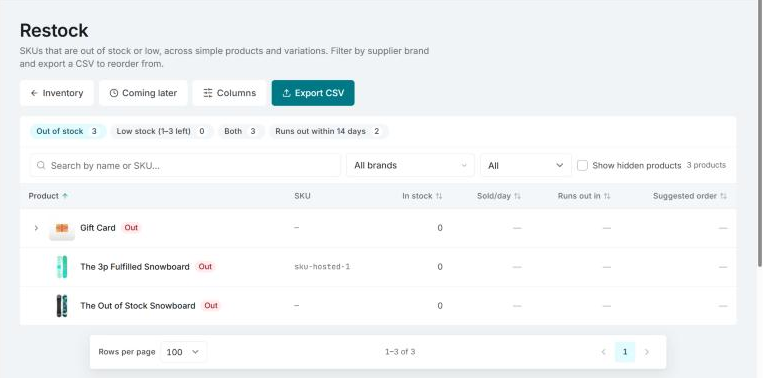
Restock lists the items that are out of stock, low or predicted to run out soon, across simple products and variations. For each item you see how fast it sells, when it runs out and how many Invdash suggests you order. You find the page under Inventory › Restock.
Choose what the list shows
The tabs at the top decide which items are listed:
- Out of stock: what has run out. This is the default.
- Low stock: what is within the limit for low stock. The tab says which quantities that is.
- Both: out of stock and low stock together.
- Runs out within … days: what is predicted to run out within your warning window, even if it is above the low level today.
You set the levels and the number of days under Stock levels and stock alerts.
You can also narrow the list:
- Search by name or SKU.
- Brand: pick one or more of the shop's categories. With a category per brand you can restock one supplier at a time.
- Type: All, Simple only or Variations only.
- Show hidden products: includes products that aren't published.
Under Columns you choose which columns to show. You also find these there:
- Group by product: shows one row per product, which you open to see its variations. Without grouping there is one row per SKU.
- Include unmanaged stock: includes items that don't track stock. It only works on the Out of stock and Both tabs, since low stock and predictions need stock tracking.
Click a product's name to open it and change its stock or price. In an Abicart store the name goes to Inventory instead.
The columns
- In stock: the quantity right now. A dash means stock isn't tracked for the item. The badge Out or Low is beside the product's name.
- Sold/day: how many are sold per day on average.
- Runs out in: how many days the stock lasts at that rate, or Out now.
- Suggested order: how many to order.
- Also Product, Variant, SKU, Price and Categories.
Click the header Product, In stock, Sold/day, Runs out in or Suggested order to sort, for example by Runs out in to see the most urgent first.
How the suggestion is worked out
- Sold/day is the number sold in the sales period (30 days by default), divided by the days in the period. If the item has been on sale for a shorter time than the period, only those days count.
- Runs out in is the stock divided by what sells per day, rounded down.
- Suggested order is what is needed for the stock to last the Order enough for days (25 by default), minus what you have in stock and what is on its way from suppliers. The suggestion is rounded up and is never below 0.
An example: 23 in stock at 3.7 sold a day lasts 6 days. In 25 days just over 92 are sold, so the suggestion is to order 70.
An item that hasn't sold anything in the period gets no prediction and no suggestion. It shows a dash, with the explanation Sells too rarely for a prediction.
For a grouped product the variations' sales and suggestions are added up, and the product runs out when its first variation does.
On the way and overdue
Under the suggestion it may say, for example, "40 on the way" or "10 overdue". Those are goods you have saved as Coming later in a supplier import:
- On the way is what the supplier has yet to deliver, where the expected date hasn't passed. It is taken off the suggestion.
- Overdue is what should have arrived but hasn't. It isn't taken off, since it may not come.
Owners and admins can click the numbers, or Coming later at the top of the page, to see the baskets and receive the goods when they arrive. How to receive a delivery is described under Supplier import.
Export a list to order from
Export CSV downloads the list as a file to reorder from. The file follows the filters you have chosen and always has one row per SKU, also when the list is grouped by product.
If something doesn't work
- Couldn't read sales right now, so the predictions are missing. The list still shows, but without Sold/day, Runs out in and suggestions. Reload the page in a moment.
- Couldn't refresh the report, so it shows the list from before. Click Try again.
- Connect your shop to see what to restock. No shop is connected, or you don't have access to one. Ask an owner or admin for help.