Supplier import
With Supplier import you read in a file from your supplier instead of keying in a delivery row by row. Invdash matches the file's rows to your products. What has arrived goes into stock, in Invdash and in the shop, and the rest can be saved as Coming later.
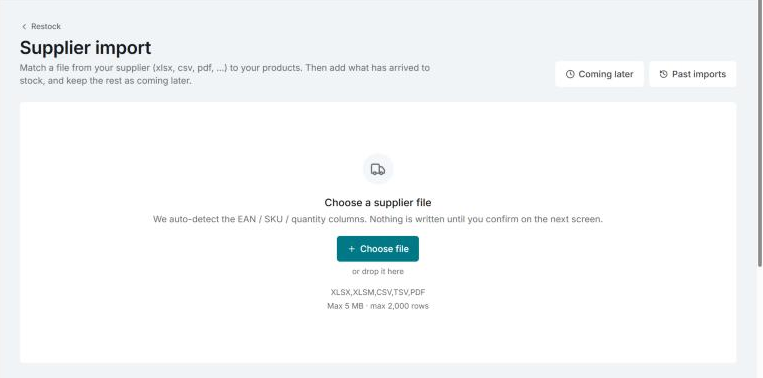
The pages are under Inventory in the menu: Supplier import, Coming later and Import history. Importing and receiving goods is for owners and admins. Other members can see Import history.
Files that can be read
- Excel (
.xlsxand.xlsm), CSV, TSV and PDF. - At most 5 MB and at most 2,000 rows. A PDF can have at most 50 pages.
- A PDF has to contain text. A scanned order or a picture can't be read.
- Old
.xlsand.odsfiles can't be read. Save them as.xlsxor CSV first.
The file needs a column that identifies the product (EAN, GTIN, barcode or SKU) and a column with the quantity. Invdash looks for the quantity headers Quantity, Qty, Pieces, Units, Antal, Stk, St or Pcs.
Read in a file
- Open Inventory › Supplier import.
- Click Choose file, or drop the file in the box. Nothing changes in stock until you confirm on the next screen.
- Choose what the file is:
- Delivery note: the goods have arrived. Matched rows go into stock now.
- Order confirmation: nothing has arrived yet. Matched rows are saved as Coming later.
- Fill in Reference, usually the PO or delivery note number. The reference stops the same delivery being added twice.
- Fill in Supplier if you like. Invdash then remembers the file type for the next file from the same supplier, and you can give the supplier a lead time.
- If some rows are coming later, you can set Expected, the date they should arrive. After that date they show as overdue.
How rows are matched
Invdash finds the identifier and quantity columns by itself and looks up each row among the shop's products and variations. The order is:
- The variation's or product's SKU, ignoring upper and lower case.
- The variation's or product's EAN/GTIN.
- Other common barcode fields on the variation or product.
Above the rows it says how the file was matched and how many rows got a match. If Invdash finds no quantity column, you choose it yourself and the file is read again.
Change the matching
If the matching isn't right, click Change matching:
- Add mapping: pick a column in the file and the field in the shop it should equal, for example the variant's SKU, EAN/GTIN or an attribute.
- Combine columns: put several columns together into one value, for example
{Style number}-{Size}. - Add another rule: a rule that is only tried for rows the rules above found nothing for, for example EAN first and then style and size.
- Auto-discover mapping: Invdash suggests mappings based on what is in the shop. Choose Use this mapping.
- Save as template…: saves the matching for the whole company. A template with the same name as the supplier is used for that supplier's next file by itself.
Review the rows
Rows that need attention are shown first. The filters All, Matched, Several possible and No product help you find them.
- Several possible: several products match the row. Pick the right one.
- No product: click Choose product and search by name, SKU or EAN. If the product isn't in the shop yet, add it there and sync. Otherwise the row is left out.
- Compare shows the row's values in the file beside the product in the shop.
For each row you choose what happens: Add now, Coming later or Leave out. With Set all rows shown to you change several rows at once.
Several rows for the same product are added up. A row that already went in under the same reference shows as Already added and isn't added again.
Add the stock
The summary at the bottom says how many units are added to how many products. Click Add … to stock to add them. If the file only has rows coming later, the button is Save … rows as coming later.
Afterwards the result shows which rows were applied, skipped or failed. Choose Import another file to carry on with the next one.
Stock keeps going in if you leave the page, and Import history shows how it went. If contact was lost, Invdash reads the file again. Rows whose stock is already in show as already added, and nothing is added twice.
Coming later
Inventory › Coming later shows what your suppliers still owe you, by supplier and basket (a basket is an import with its reference). The tabs are Open, On the way, Overdue and Closed (90 days). You can search by reference, supplier or product.
Receive goods when they arrive:
- Click Receive on a line, or select several lines and receive them together.
- Tick what arrived and fill in how many.
- Mark what won't come at all as Not coming. Restock then stops counting it as on the way.
- Confirm with the button at the bottom, which says how many products you are receiving. The goods go into stock and the shop as the basket's next delivery.
If the delivery comes with a new delivery note, you can read that in under the same reference instead. The rows that were expected are then received when you add the stock.
For each supplier you can click Change and set Lead time in days and what the supplier usually sends (delivery notes or order confirmations). New baskets are then expected on their order date plus the lead time. You can also change a basket's expected date by hand.
What is on the way is taken off the suggestion under Restock and shown in Inventory.
Import history
Inventory › Import history (on the import pages the link is called Past imports) lists past imports for the store, with reference, supplier, who made the import and how many rows were applied, failed or skipped. Search by reference or supplier, and click a row to see what happened to each row of the file.
- Receive receives the rest of an import that still has rows to come.
- A button for sending rows to the shop again shows when the shop refused rows that Invdash added. Invdash checks the shop's stock and lets you choose for each row whether the quantity should be added or is already there.
If something doesn't work
- It isn't a file we can read. Use xlsx, csv, tsv or pdf.
- A PDF that is password protected, scanned or has no order lines can't be read. Ask the supplier for the order as Excel or CSV.
- It's too big to import at once. Split the file into smaller files of at most 2,000 rows.
- None of the values checked from the file are in this store. Often the products haven't been synced yet. Choose Sync this store now and try again.
- Some quantities can be read two ways. A quantity like
1.000can mean a thousand or one. Invdash asks what it means in the file before the rows can be added. - Stock isn't managed for the product. Turn on Manage stock for the product and read in the file again.
- The product keeps its stock per size. The row points to a variable product and needs to be matched to a variation.