Connect an Abicart shop
Invdash connects to an Abicart shop with the shop's ID and an API key that you create in Abicart. There's nothing to install in the shop.
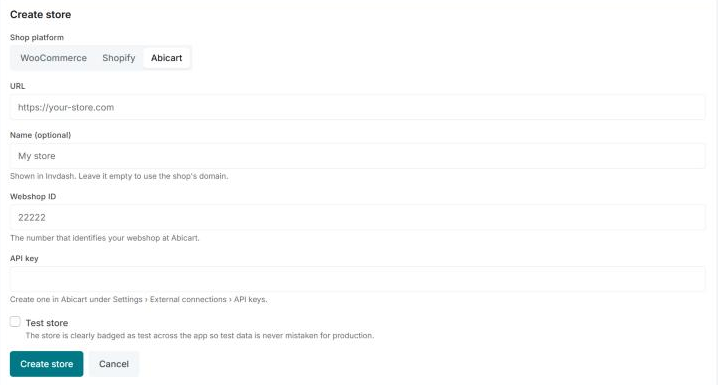
What you need
- To be an owner or admin in Invdash.
- The Webshop ID: the number that identifies your webshop at Abicart.
- An API key, which you create in Abicart under Settings › External connections › API keys.
- The shop's public address, for example
https://your-store.com.
The API key gives full access to your shop. Paste it only into Invdash, and never send it by e-mail or chat.
Connect the shop in Invdash
- Open Settings › Integration › Stores and click Add store.
- Choose Abicart under Shop platform.
- Enter the shop's address under URL.
- Give the store a name if you like. If you leave Name (optional) empty, the shop's domain is used.
- Enter the Webshop ID and paste the API key.
- Tick Test store if it's a test shop.
- Click Create store.
Invdash checks the connection before anything is saved, by trying that the key can read the shop's orders. After that, products, orders and customers are read in, and you can start using Invdash meanwhile.
Instant orders
Normally Invdash picks up new and changed orders from Abicart with the regular sync, within about 15 minutes. With Instant orders, Abicart instead tells Invdash at once of new, paid, sent and cancelled orders. The regular sync carries on and catches anything else.
Invdash turns instant orders on when the store is connected. The store's row on the Stores page says Instant orders: On or Off. Click Turn off to go back to the regular sync alone, and Turn on to enable it again.
What Invdash does with Abicart
This is what Invdash reads from Abicart:
- Products and variants with their stock.
- Orders.
- Registered customers. Guests have no customer record of their own in Abicart, so they're created in Invdash from their orders.
This is what Invdash writes back to Abicart:
- Stock, when you change or adjust it in Invdash.
- Shelf location on variants.
- Shipments with tracking. What you ship from Invdash becomes a shipment in Abicart, and the order is marked sent once everything has left.
- Payment status for payments Invdash has captured, so Abicart doesn't show them as reserved.
What's done in Abicart instead
Abicart allows less than WooCommerce and Shopify. You do the following in Abicart's own admin:
- Create and edit products. Names, prices, images and categories are changed in Abicart. In Invdash you work with the stock and the shelf locations.
- Change orders. Order lines, addresses and order status aren't changed from Invdash, and you can't write order notes or notes to the customer.
- Replacement orders for exchanges. Invdash can't create an order in Abicart, so you place a free replacement order in Abicart's admin.
Abicart also has no plugin and no webhooks to set up. On the Webhooks page the store is shown with Scheduled sync.
If something doesn't work
Test connection on the store's row checks the Abicart API row and says what's wrong:
- Abicart refused the API key. Create a new one in Abicart and save it with Edit. Check that you copied all of it.
- Abicart has no webshop with that ID. Check the webshop ID. It's a number.
- The key may not read orders. Ask Abicart's support to switch on API access ("Integration med eget system").
- Abicart didn't answer, or answered with an error. Try again shortly.
- "This Abicart webshop is already connected." The webshop already exists as a store in Invdash.