Plans and billing
Under Settings › Company › Billing you see the company's plan, what you use and your invoices. The page is open to everyone in the company, but only owners and admins can pick or change the plan.
The plans
Invdash has four plans. They differ in how many orders a month and how many stores they have room for. Every plan has every feature, unlimited users and every shipping label.
| Plan | Orders a month | Stores | Price per month |
|---|---|---|---|
| Start | Up to 300 | 1 | 449 kr |
| Grow | Up to 1,000 | 3 | 799 kr |
| Pro | Up to 3,000 | 5 | 1,599 kr |
| Scale | Up to 8,000 | 10 | 3,499 kr |
Prices are in SEK excluding VAT. You pay monthly or yearly, and yearly gives a lower price per month. Pro and Scale have same-day support, and Scale has an onboarding session.
The table shows the plans as they were when this page was written. The current prices and limits are always on the plan cards under Settings › Company › Billing.
The trial
The first company you create gets a free 14-day trial of the Scale plan, without entering a card. Further companies you create don't get a new trial: you pick a plan straight away. The sidebar shows how many days are left, and the Billing page says which date the trial ends.
You can pick a plan at any time during the trial. When the trial is over, access is locked until an owner or admin has picked a plan. Every page then leads to Billing: only that page and your profile can be opened. Your data is exactly where you left it, and as soon as a plan is picked the dashboard, inventory and orders are back.
Pick a plan
- Open Settings › Company › Billing.
- Under Pick a plan, find the plan you want.
- Click Monthly or Yearly on the plan's card.
- Complete the payment in Stripe, which handles card payments for Invdash.
When the payment has gone through you come back to Invdash and the plan is active. If the payment is still being processed, the plan becomes active as soon as it clears. If you cancel the checkout, nothing is charged.
You can cancel any time.
Change plan
When the company has an active subscription the section is called Plans, and your plan is marked Current plan.
- Click Upgrade to or Downgrade to on the card of the plan you want to change to.
- Confirm the change in Stripe.
If you have more stores than a smaller plan has room for, your existing stores keep working. Only adding more is blocked.
Payment method, interval and cancelling
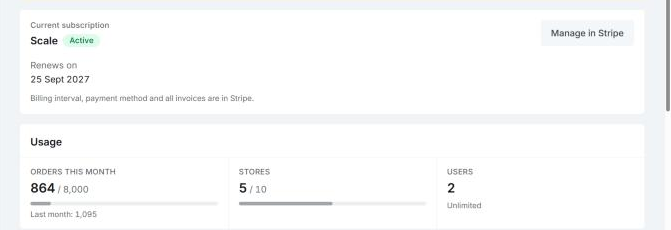
Click Manage in Stripe under Current subscription. In Stripe you can:
- update the card or payment method
- switch between monthly and yearly billing
- cancel the subscription
- see and download all invoices.
Under Current subscription you also see when the subscription renews. If you've cancelled it, it says Cancellation scheduled and which date it ends.
Usage and the order limit
The Usage section shows Orders this month against the plan's limit, last month's count, and how many Stores and Users the company has. The label Near limit, Limit reached or Over limit is shown when you approach or pass a limit.
This is how the order limit works:
- Going over never stops anything. Orders keep coming in and you can work as usual.
- A single month over the limit costs nothing extra.
- Over the limit two calendar months in a row moves the company to the plan that fits. The new price applies from your next payment.
The store limit works differently: once the plan's number of stores is reached, you can't connect more until you upgrade. Read more in Several stores.
Invoices
The Billing history section shows the latest invoices, at most twelve, with date, number, period, status and amount. It is shown to owners and admins. Click View to open an invoice or PDF to download it. The full history is in Stripe, through Manage in Stripe.
Invoices include EU VAT once a registered business is verified with Stripe.
If something doesn't work
- Payment failed — update the card. The message is shown in the sidebar when a card payment hasn't gone through. Click Manage in Stripe and update the payment method.
- The last payments didn't go through. The plan has stopped and access is locked. Pick a plan on the Billing page to continue. Your data is kept.
- This subscription has been canceled. Pick a plan to reactivate. Your data, activity log and connected stores are kept: nothing is deleted when a subscription ends.
- You're not an owner or admin. You see the plan but can't change it. Ask an owner or admin of the company to pick a plan: see Users and roles.
- We couldn't confirm the payment yet. If you completed checkout, the plan shows up within a few minutes. Reload the page.